
Welcome to Section 1 of the Intermediate level Website World Course.
In this section, you will learn:
- how make a backup of your website
- how to change your website theme
Making a Website Backup
In the CMS, you can make a backup of your website at anytime. A backup that you do is different to what we do when you host your website with us. Our backup occurs automatically every set number of hours on our servers. This ensures that changes you made to your site are saved. We cannot (without a fee) reset your website to a previous saved version.
When you make a backup of your site though, you can access this backup and use it to restore your site to what it looked liked and contained exactly prior to when you made the backup. The main times you would do a backup is before you start making large changes to your website, such as changing to a new theme or re-organising your pages.
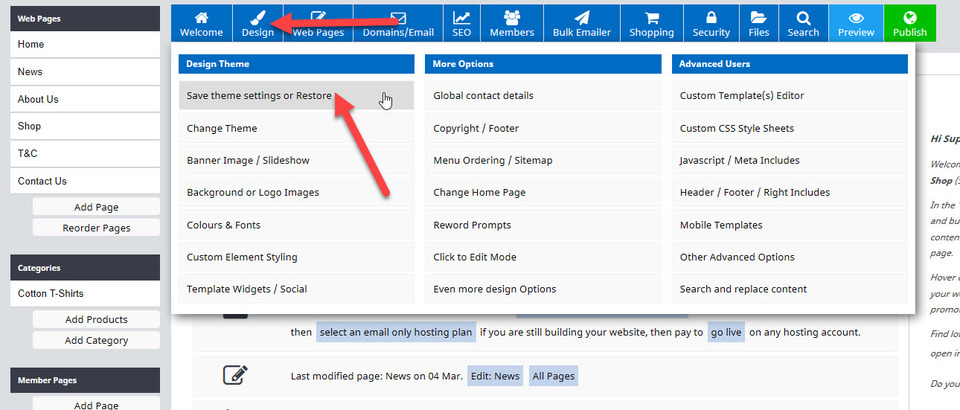
To make a website backup, hover over Design, and then select the option Save theme settings or Restore.
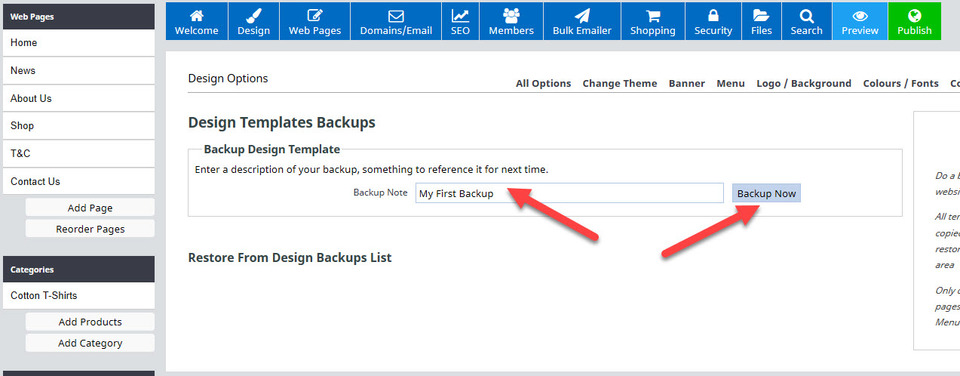
A page titled Design Templates Backups will open. In the box Backup Note, type a name for your backup and then click the Backup Now button.
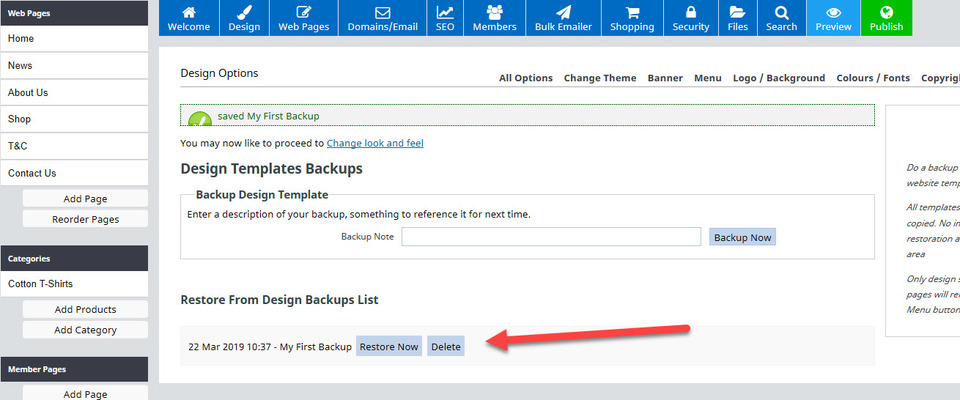
You will see that the date and time, along with the name of your backup is then listed under the heading Restore from Design Backups List. It is here that you would return to click the Restore Now button should you wish to restore your website to the way it was before you made those big changes. It is possible to have multiple backups saved here.
Changing Your Website Theme
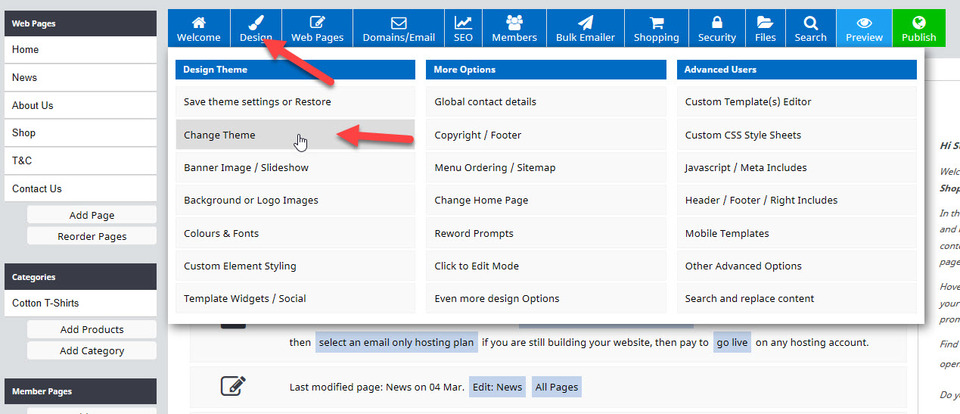
Now you have made a backup, you will learn how to change to a new theme design. Head to Design - Change Theme.
You will see a page similar to the one you saw when setting up your website. We're going to click on the tab which says Ecommerce to open up a page which displays all of the ecommerce themes. Next we'll select the Chocolate Box theme. Note that you can see what theme you are currently using in the Tool Tips box on the right hide side of the screen.
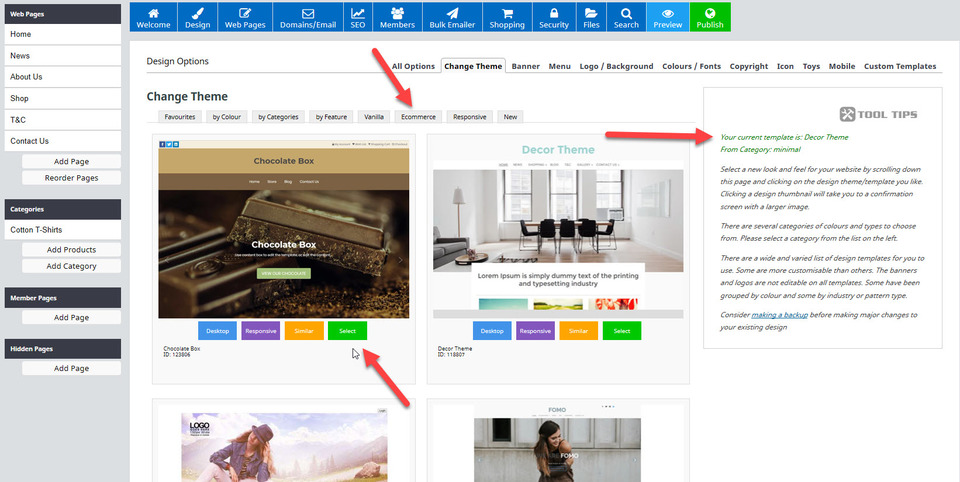
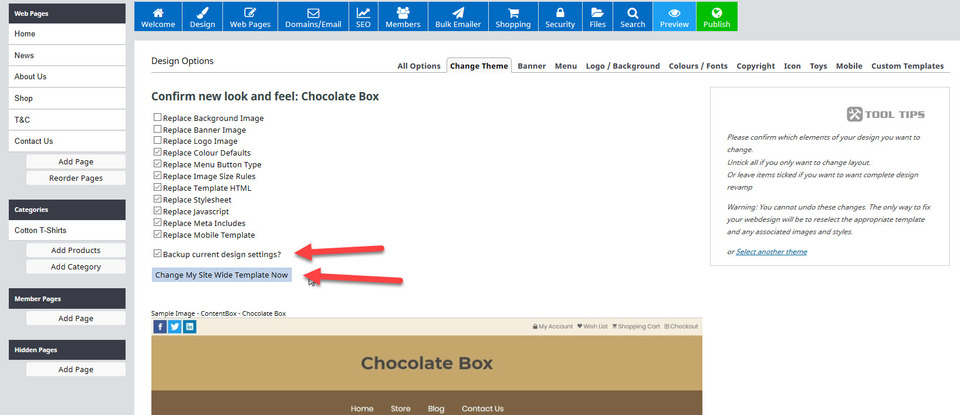
Upon clicking the Select button for the Chocolate Box theme, we then need to decide which elements of the website design we want to change. There are some boxes which have been ticked by default, and others without a tick. You will need to work through these manually and decide which ones you want replaced or not.
You would untick all of the boxes if you simply wanted to change the layout of the way your site looks. Or you would leave the default boxes ticked (except the ones saying replace background image, banner image and logo image which must remain empty so your previously uploaded graphics remain the same).
Generally it is fine to simply leave the default settings in the tick boxes as they are, but be sure you confirm this before confirming the changes.
In this example, we are leaving the default settings as they are. We don't need to add a tick to the backup current settings option, as we have just made a backup. But to demonstrate what happens when you do, we will click in that box too. Then we'll click the button which says Change My Site Wide Template Now.
You then have some warning messages coming up which explain why you may not see instant changes. You also have the option to view and publish your changes, and a reminder that you may need to change your colour and menu settings if they have changed from what you set originally.
We're going to click the Publish Changes button, and then the View your test website option. The home page of the website now looks like this:
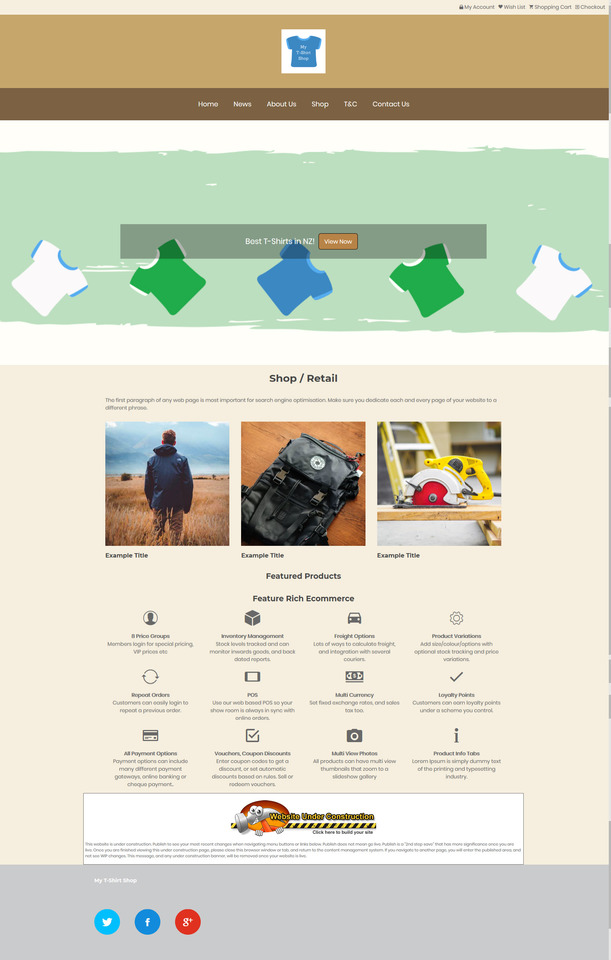
You will notice that as well as looking different, the colours in the top section of all of the pages, along with the page background has changed to the default colours in the Chocolate Box theme. We're going to change those back to what they were previously. In the case of our My T Shirt site, this is white.
Head to the Design option, and select the Colours & Fonts option. It will show you what the current settings are for your site. Replace the ones you don't want in the same way you selected them to start with, using the hex code or the pick a colour option. (Remember that in Beginners Course Section 3, we asked you to write down your hex codes).
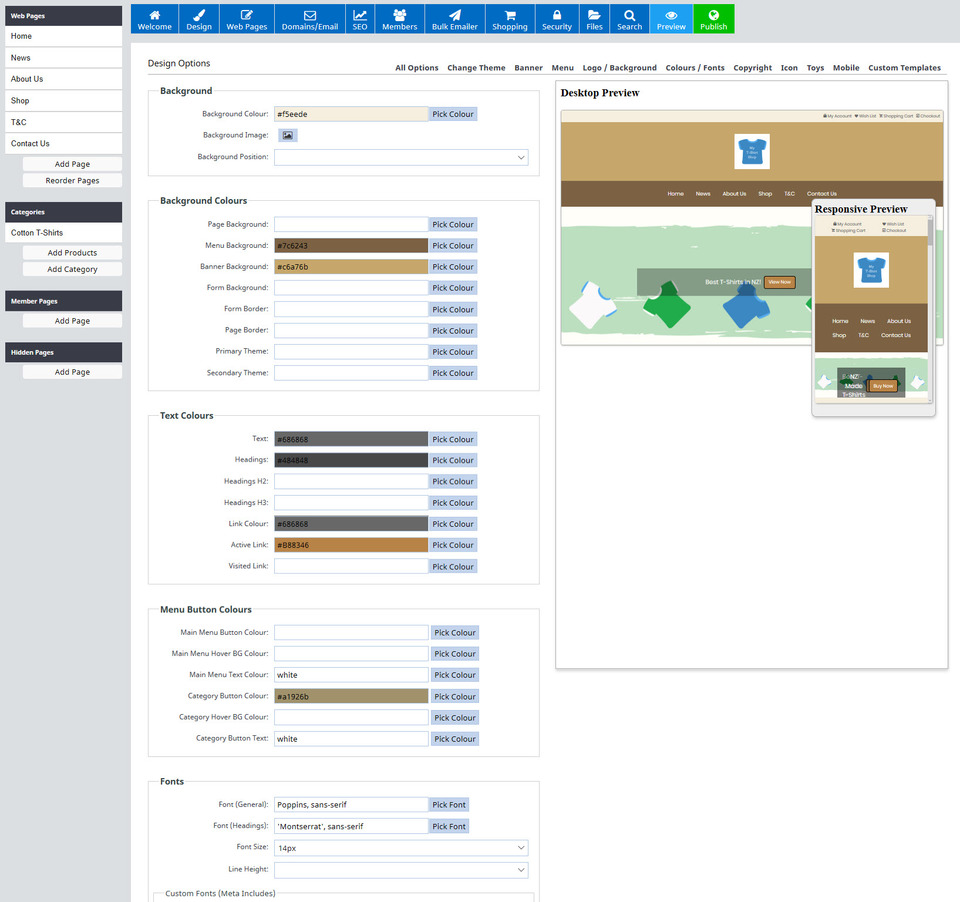
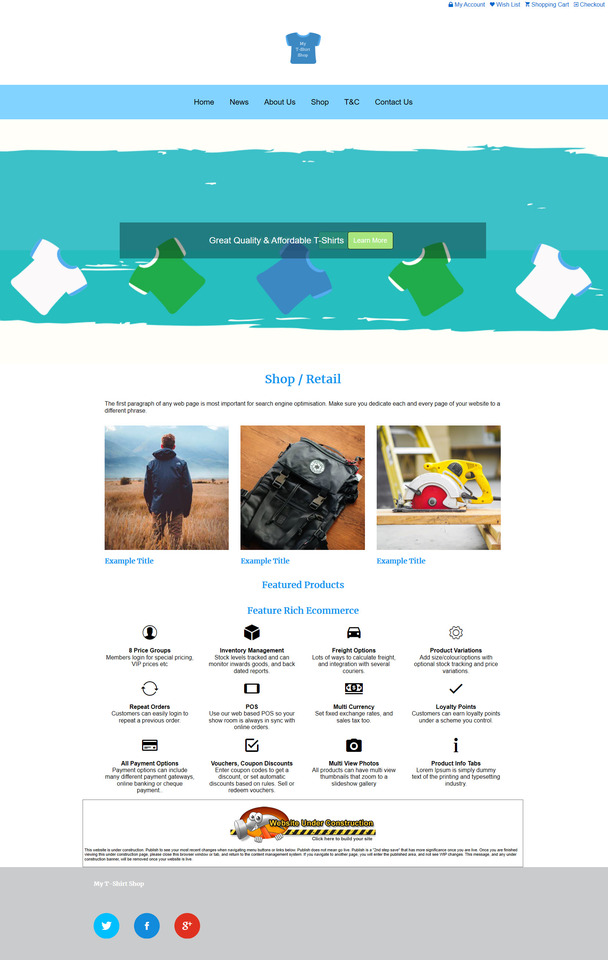
We have changed both the colours and the fonts back to our original colour choices in the Section 3 Beginners course, and selected the publish button. The home page and the rest of the site have returned to the colour options we originally chose and the home page now looks like this:
Congratulations, you have now completed Section 1 of the Intermediate level course. It's time to move on to Section 2 of the Intermediate Course.
