
Custom calcs is an optional plugin that can be used to calculate a complex manufacturing cost, using all sorts of interesting formulas.
See below an example screenshot for the "making of curtains" that would be used along side a chosen "material" (fabric).
The customer is asked to choose a "pleat style" and "width" and "height" dimensions.
These choices are saved in a "variable name", and those variables become available to the calculations thereafter.
The pricing steps happen in order from top to bottom.
Depending on the type of a step, it may lookup a value, calculate a value, or output a value to be visible to the customer. eg in this case we want the customer to know how much material is consumed. If the material is unknown, we set a default minimum width of 900 for the unknown fabric roll.
The pleat style is convered to 2 different multipliers. One is to determine how much more fabric will be consumed to generate the fullness of the pleat style. The other factor is to consider how much manufacturing/sewing effort will occur.
Once we know the basic dimensions and factors, we can start to calculate the derived variables.
The Drops required is output to the cart, so that the customer can consider if the pleat style or dimension has pushed them to an extra drop. Each extra drop consumes much more fabric.
Once we know the material consumption, we can set the quantity of that item, assuming the fabric is in our cart already (and we have standard approaches to make that possible)
The total cost of manufacture can be used to generate a cost on top of the base unit price, or to override the unit price. In this case, we want the manufacturing priced from: $100. Therefore we are reseting the line item price to be the greater of the cost of manufacture, or 100.. Rather than adding the manufacture cost on top of the $100, which is possible depending on your scenerio.
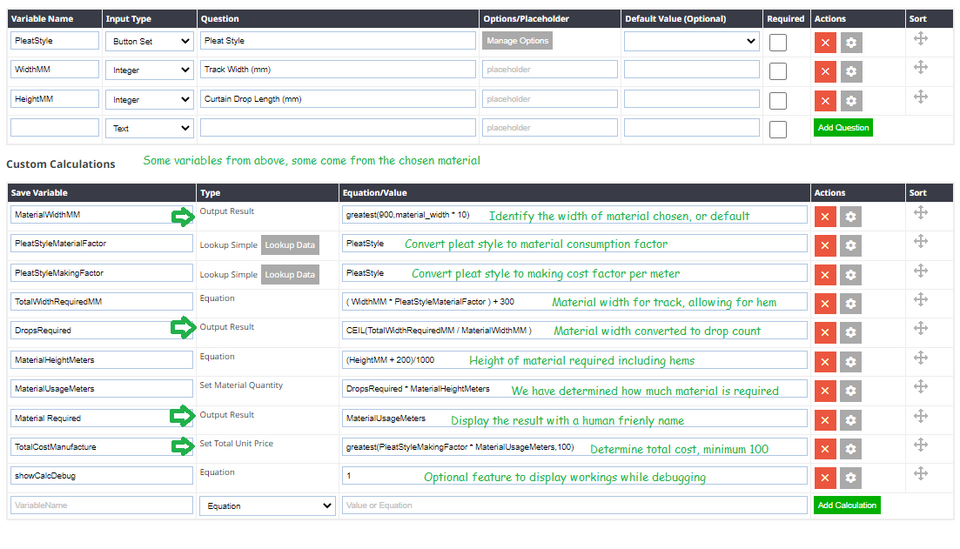
We also set a special variable called "showCalcDebug". If this variable exists, and has a positive number assigned, then we will output a detailed table showing all the calcs, so that you can work through any debugging issues while you setup your perfect manufacturing product.
| MaterialWidthMM | 900 | Equation | greatest(900,material_width * 10) | |
| PleatStyleMaterialFactor | 1.2 | Lookup Simple | PleatStyle | |
| PleatStyleMakingFactor | 15 | Lookup Simple | PleatStyle | |
| TotalWidthRequiredMM | 2700 | Equation | ( WidthMM * PleatStyleMaterialFactor ) + 300 | |
| DropsRequired | 3 | Output Result | CEIL(TotalWidthRequiredMM / MaterialWidthMM ) | |
| MaterialHeightMeters | 1.2 | Equation | (HeightMM + 200)/1000 | |
| MaterialUsageMeters | 3.6 | Set Material Quantity | DropsRequired * MaterialHeightMeters | |
| Material Required | 3.6 | Output Result | MaterialUsageMeters | |
| TotalCostManufacture | 100 | Set Total Unit Price | greatest(PleatStyleMakingFactor * MaterialUsageMeters,100) | |
| showCalcDebug | 1 | Equation | 1 |
Lookup Data
There are several lookup approaches.
Lookup Simple
Converts an answer from a known option list (eg a combo box, button set), into a value for use in calculations. It's very important that your lookup variable is named exactly the same as the equation variable. The result of the lookup will be saved as the "Save variable". Often lookups are used for multiplication factors. If you are using multiplication factors, consider setting the default value to 1, or something that will work if you accidently add options to your option list, but forget to set a multiplication factor.
Lookup Table (Exact Match)
A lookup table needs 2 variables to check, and these are specified in the equation area separated by a comma. The first value finds a row based on the left column of the table. The second value is finds the desired column based on the value in the top row. It should be noted that the exact match search requires that the row or column values are found successfully, using an exact ext search. So it is possible to search for text...
eg
Equation=RodStyle,RodSize
Equation=B,12
Result = 9
| 10 | 12 | 16 | |
| A | 5 | 6 | 7 |
| B | 8 | 9 | 10 |
| C | 12 | 13 | 14 |
Lookup Table (Nearest Match)
This works very similar to the lookup table above, however, the variables specified are assumed to be numbers.
The nearest search will find the column or row with an equal or lessor value.
The assumption is that customer values will be "rounded up" to the nearest value.
eg
equation=height,width
equation=190,2200
result = 100
| 1000 | 2000 | 3000 | |
| 100 | 50 | 60 | 70 |
| 200 | 80 | 90 | 100 |
| 300 | 120 | 130 | 140 |
Pasting Tabular Lookup Data From Excel
Most often a customer might fetch their tabular data from excel. Take care with some data sources that formatting may create too much hidden code, and the table won't save properly. Tip: remove all formating from the table prior to pasting it. Or use the cleanup buttons on the toolbar to tidy up the table prior to saving. You can also copy and paste HTML tables from websites, or anything that produces a table in the pasting area.
- Open your spreadsheet
- Select only the relevant table cells, ignoring headers. We only want the applicable data and lookup values.
- Remove cell formating
- Copy those cells from spreadsheet.
- Paste into the lookup data area in our CMS.
- Use the cleanup buttons to remove styling.
- Save the form.
Understanding Calculations / Equations
The product price calculator runs a sequence of calculation steps. Each step evaluates one equation. Its answer can be saved as a new variable for later steps, or used to set a price or another product value.
The Calculator only evaluates the equation. The surrounding product system supplies values such as quantity, weight, height, width, depth, and answers saved by earlier steps.
A simple calculation sequence
- Calculate volume with
width * height * depthand save the answer asvolume. - Calculate material cost with
volume * material_rateand save the answer asmaterial_cost. - Calculate the total with
money(material_cost * quantity)and use the answer as the price.
Variable names are not case-sensitive. A missing or null variable is treated as blank text, or as zero when a number is required.
Writing equations
- Use ordinary decimal numbers, for example
12,3.5, or1.2e3. - A leading dollar symbol is ignored on a number, so
$55is treated as55. Currency symbols supplied with numeric variable values are also ignored. - Use ASCII operator characters. For example, use
*for multiplication and/for division. - Use parentheses to control the order, for example
(width + 10) * quantity. - A value directly followed by parentheses implies multiplication, so
5(5)means5 * 5. Using*is usually clearer. - Separate function arguments with commas, for example
max(width, height, depth). - Put text inside single or double quotes, for example
'Large'or"Blue". - Functions and variable names are not case-sensitive.
- The words
true,yes,y, andtmean true. The wordsfalse,no,n, andfmean false. - The constants
piandeare available.
Operators
| Operator | Meaning | Example |
|---|---|---|
+ |
Add numbers. If the left value is text, join the values as text. | width + 10 |
- |
Subtract, or negate a value. | price - discount |
* |
Multiply. | quantity * unit_price |
/ |
Divide. | total / quantity |
% |
Remainder after division. | quantity % 10 |
^ |
Raise to a power. | width ^ 2 |
= or == |
Equal to. | quantity = 1 |
!= or <> |
Not equal to. | width <> height |
<, <=, >, >= |
Compare two values. | weight > 20 |
&& or and |
True when both conditions are true. | width > 10 and height > 10 |
|| or or |
True when either condition is true. | quantity > 10 or weight > 50 |
! or not |
Reverse true and false. | not blank(width) |
& |
Bitwise AND using whole-number values. | flags & 4 |
| |
Bitwise OR using whole-number values. | flags | 4 |
Division results are rounded to five decimal places using normal half-up rounding. The money(value) function rounds a final monetary value to two decimal places.
Normal calculation order applies: parentheses first, then powers, unary signs and NOT, multiplication/division/remainder, addition/subtraction, comparisons, bitwise operators, AND, and OR. Use parentheses whenever the intended order may not be obvious.
Common numeric functions
| Function | Purpose | Example |
|---|---|---|
abs(value) |
Absolute value. Aliases: absolute. |
abs(-12) |
negative(value) |
Negate a value. Aliases: negate, neg. |
negative(discount) |
round(value [, places]) |
Round normally. Places defaults to zero. | round(weight, 2) |
roundup(value [, places]) |
Round upward. | roundup(length, 0) |
rounddown(value [, places]) |
Round downward. | rounddown(length, 0) |
money(value) |
Round to two decimal places. | money(cost * quantity) |
floor(value) |
Round down to a whole number. Aliases: int, integer. |
floor(4.9) |
ceil(value) |
Round up to a whole number. Alias: ceiling. |
ceil(4.1) |
trunc(value) |
Remove the decimal part. Alias: truncate. |
trunc(4.9) |
min(values...) |
Smallest value. Aliases: minimum, least. |
min(width, height, depth) |
max(values...) |
Largest value. Aliases: maximum, greatest. |
max(width, height, depth) |
sum(values...) |
Add all values. | sum(base_price, handling, freight) |
avg(values...) |
Average of all values. Alias: average. |
avg(width, height, depth) |
clamp(value, min, max) |
Keep a value between a minimum and maximum. | clamp(quantity, 1, 100) |
default(values...) |
If the first value is zero, use the first later value greater than zero. Alias: nozeros. |
default(custom_price, standard_price) |
sign(value) |
Return -1, 0, or 1 for a negative, zero, or positive value. Alias: signum. |
sign(balance) |
sqrt(value) |
Square root. Alias: squareroot. |
sqrt(area) |
cbrt(value) |
Cube root. | cbrt(volume) |
pow(value, power) |
Raise a value to a power. | pow(width, 2) |
hypot(a, b) |
Length of the diagonal made by two sides. | hypot(width, height) |
random() |
Random value from 0 up to 1. Use random(max) or random(min, max) for another range. Alias: rand. |
random(1, 10) |
Advanced numeric functions
| Function | Purpose |
|---|---|
exp(value) |
Raise e to the given value. |
ln(value) |
Natural logarithm. |
log(value), log10(value) |
Base-10 logarithm. |
log2(value) |
Base-2 logarithm. |
sin, cos, tan |
Trigonometric functions using radians. |
asin, acos, atan, atan2(y, x) |
Inverse trigonometric functions. |
sinh, cosh, tanh |
Hyperbolic functions. |
degrees(value) |
Convert radians to degrees. Alias: deg. |
radians(value) |
Convert degrees to radians. Alias: rad. |
Text functions
| Function | Purpose | Example |
|---|---|---|
length(text) |
Number of characters, including spaces. Aliases: len, strlen. |
length(product_name) |
charcount(text) |
Number of visible chargeable characters, excluding spaces, tabs, line breaks, and non-breaking spaces. HTML entities count as one character. | charcount('AT&T Signs') returns 9 |
lower(text) |
Convert to lower case. Alias: lowercase. |
lower(colour) |
upper(text) |
Convert to upper case. Alias: uppercase. |
upper(code) |
trim(text) |
Remove spaces from the start and end. | trim(code) |
left(text, count) |
Take characters from the left. | left(code, 3) |
right(text, count) |
Take characters from the right. | right(code, 3) |
substring(text, start [, count]) |
Take text starting at a zero-based position. Alias: substr. |
substring(code, 2, 4) |
replace(text, old, new) |
Replace all matching text. | replace(code, '-', '') |
concat(values...) |
Join values as text. Alias: concatenation. |
concat(width, ' x ', height) |
contains(text, part) |
True when text contains the part. | contains(description, 'steel') |
startswith(text, start) |
True when text starts with the given text. | startswith(code, 'XL') |
endswith(text, end) |
True when text ends with the given text. | endswith(code, '-R') |
indexof(text, part) |
Zero-based position of the part, or -1 when absent. | indexof(code, '-') |
textequals(first, values...) |
True when every later value exactly equals the first. | textequals(colour, 'Blue') |
textcontains(first, values...) |
True when the first text contains every later value. | textcontains(description, 'steel', 'blue') |
textstartswith(first, values...) |
True when the first text starts with every later value. | textstartswith(code, 'A') |
text(value) |
Convert a value to text. Alias: string. |
text(quantity) |
number(value) |
Convert a value to a number. Non-numeric text becomes zero. | number(answer) |
The legacy text functions length, strlen, charcount, textequals, textcontains, and textstartswith accept plain unquoted text. An argument matching a variable name uses that variable; otherwise it is treated as literal text. For example, TEXTEQUALS(OperatingSystem,Chain Driven) compares the variable OperatingSystem with the text Chain Driven.
Conditions and choices
| Function | Purpose | Example |
|---|---|---|
if(condition, true_value, false_value) |
Choose one of two values. | if(quantity >= 10, price * 0.9, price) |
and(conditions...) |
True when all arguments are true. | and(width > 0, height > 0) |
or(conditions...) |
True when at least one argument is true. | or(weight > 20, quantity > 10) |
not(value) |
Reverse true and false. | not(blank(width)) |
eq(a, b) |
Case-sensitive text equality. | eq(colour, 'Blue') |
ec(a, b) |
Text equality ignoring letter case. | ec(colour, 'blue') |
blank(value) |
True when a value is missing, empty, or only whitespace. Alias: isblank. |
blank(custom_price) |
HTML entity text
Text supplied by product content may contain HTML entities. The calculator decodes numeric entities and common named entities before using the text. An encoded character counts as one character, so length('£12') returns 3. Common supported names include &, <, >, ", ', , ¢, £, ¥, €, ©, ®, ™, and °.
Decimal numeric entities such as A and hexadecimal numeric entities such as A are also supported. Unknown or incomplete entities are left unchanged.
Invalid equations
An invalid equation does not stop later calculation steps. It records an error message so the product system can display the problem. Depending on the result requested by the product system, an invalid equation produces false for a Boolean, zero for a number, Error for text, or no general result.
Useful product examples
| Purpose | Equation |
|---|---|
| Area | width * height |
| Volume | width * height * depth |
| Charge by weight, with a minimum charge | max(minimum_charge, weight * rate_per_kg) |
| Quantity discount | if(quantity >= 10, unit_price * quantity * 0.9, unit_price * quantity) |
| Use an earlier answer when present | default(custom_cost, standard_cost) |
| Final price rounded to cents | money(material_cost + labour_cost + freight_cost) |
More From This Section
FAQ Topics
Building your site
Advanced Page Types
E-Commerce
- Shopping Basics
- Product Pricing, Currencies
- Category Management
- Products
- Product Options
- Layout and Formatting
- Payment Options
- Freight - Couriers
- Processing Orders
- Orders / Invoices
- Advanced Ecommerce
- Plugins
- Wholesale
- Bookings Management System
- Stock & Quantities
- Vouchers, Discounts, Loyalty Points
- Selling Photos / Prints
- Shopping Cart Add-on Page types
- Advanced APIs / Add ons
- Point of Sale (POS)
- Reports
Email & Membership
Promoting your site
Advanced
- Power User Options
- Form Spam Filtering
- Wordpress
- PHP Setup
- [TAGS]
- FONTS - Embedding Web Fonts
- jQuery snippets
- FONTS - Uploading local font files
- Search External Links / Import external content
- HTML / CSS Snippets
- Loading additional Material Symbols styles
- FAQ Help Map
- Advanced Template Customisation, CSS, etc
- Languages and Translations
- Importing Content from Another Platform
