
It is easy to take bookings for accommodation.
Kundenerlebnis
- Customer adds their selected room type (aka products) to their cart.
- Auf der nächsten Seite wird der Kunde aufgefordert, ein Ankunfts- und ein Abreisedatum auszuwählen.
- The customer will only see availability for their room types and room quantity.
- Der Kunde kann aufgefordert werden, eine Anzahlung zu leisten, den vollen Betrag zu bezahlen oder gar nichts zu bezahlen und die Bestellung abzuschließen.
Getting Started
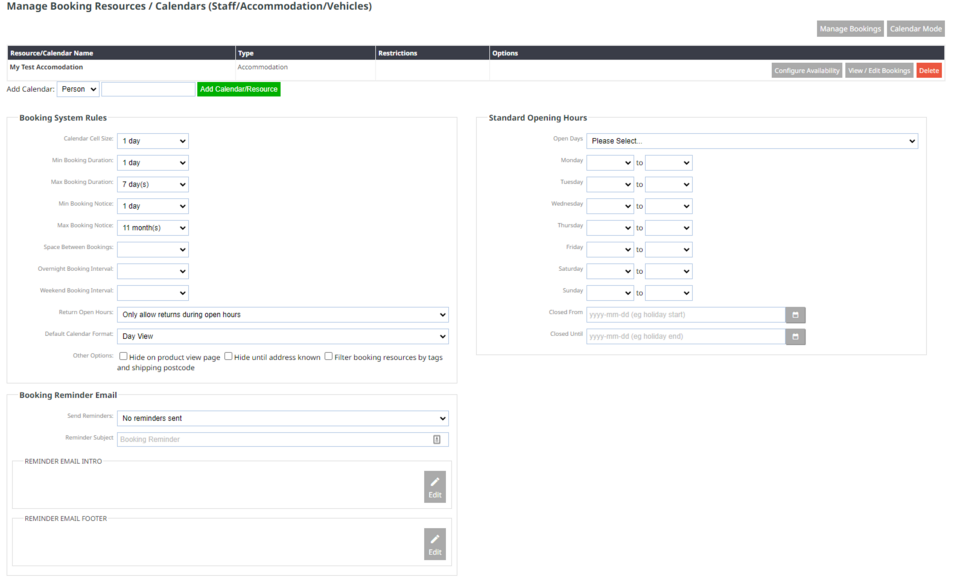
1. Configuring Accommodation Booking
To do this go to E-commerce > Setup Options (under bookings section)
- Configure the minimum notice you want before taking a booking, eg to avoid same day bookings.
- Konfigurieren Sie die maximale Vorlaufzeit, um zu vermeiden, dass Kunden zu weit im Voraus buchen.
- Add all of your rooms as "resource calendars". Specify any special features of the room for later use.
2. Add each room type as a new Product
- Fügen Sie jeden Zimmertyp als neues Produkt vom Typ „Unterkunft“ hinzu.
- Choose ADD PRODUCTS, then ADD ACCOMMODATION (DAY HIRE) as the product type.
- For each room type, you can optionally specify tag filters, so that only matching rooms are used. This is important if you want to sell certain rooms at a higher rate for special features, but still have the room available for a different product type.
- 12 noon is the start/end time of each booking for accommodation. You can still add terms and conditions specifying a different check-in/checkout time, as that calendar time is not known to customers.
3. Setting deposits
Deposits can be set per-product via the PRICING tab when editing the product, or you can set a payment option itself to allow deposits via its payments settings (this would be applicable for any product that uses the gateway)
Buchungen verwalten
- Following the completion of a successful booking, you can manage the bookings in the back end, either under the Buchungen tab on the left hand menu or under the E-Commerce Tab.
- Buchungen können zwischen Zimmern verschoben werden.
- You can change the date of a booking
- You can view the ecommerce order related to a booking, under Orders.
Kalendersynchronisierung
- All bookings will synchronise with Google or Office365 calendars, using 12 noon as the start/end time of each booking.
- You can still add terms and conditions specifying a different check-in/checkout time, as that calendar time is not known to customers.
- Change a booking on your phone calendar, and it will update automatically on our server. (you will need to manually contact your customer about the change)
- Change a booking on our system, and it will automatically update on your phone. (Synchronisation happens every hour or so, depending on how busy your booking calendar is.)
More From This Section
It is easy to take bookings for services from customers. This feature might be used by physios, dentists, massage therapists, or tour operators running regular service times.
Enable customers to book their hire items and be sure of availability, setting the pickup and return times.
Take bookings for accommodation.
If you have a number of seats available to book on regular timetable, such as a tour van, shuttle service, movies, or tourist activity.
FAQ Topics
The Basics
Building your site
- Pages
- Content Editor Modes Explained
- - DRAG DROP Editor (Default)
- - CONTENTBOX Editor (Advanced)
- - WORD STYLE Editor (TinyMCE)
- - LIVE Editor (Click to Edit Mode)
- Styling Content
- Images / Backgrounds
- Banners and Sliders
- Uploading content
- Design Templates
- Formulare
- More Q & A
- Menus
- Mobile Styling and Optimisation
Advanced Page Types
E-Commerce
- Shopping Basics
- Product Pricing, Currencies
- Category Management
- Produkte
- Product Options
- Layout and Formatting
- Zahlungsoptionen
- Freight - Couriers
- Processing Orders
- Orders / Invoices
- Advanced Ecommerce
- Plugins
- Großhandel
- Bookings Management System
- Stock & Quantities
- Vouchers, Discounts, Loyalty Points
- Selling Photos / Prints
- Shopping Cart Add-on Page types
- Advanced APIs / Add ons
- Kassensystem (POS)
- Berichte
Email & Membership
- Member Management
- Members Pages / Template Customisations
- From Addresses and Reply To Email Notifications
- Global Enquiry form options
- Standard Field Names
- Webmail
- Bulk Email
- CRM Features
- Email Campaigns
- Forums & Blogs
- Pop3/Imap Email Services
- Scams and Hoaxes
- Lead Magnets / Growing Your Customer Database
Promoting your site
Advanced
- Power User Options
- Form Spam Filtering
- Wordpress
- PHP Setup
- [TAGS]
- FONTS - Embedding Web Fonts
- jQuery snippets
- FONTS - Uploading local font files
- Search External Links / Import external content
- HTML / CSS Snippets
- Loading additional Material Symbols styles
- FAQ Help Map
- Advanced Template Customisation, CSS, etc
- Languages and Translations
- Importing Content from Another Platform
