
Switch your CMS dashboard between Light Mode and Dark Mode to suit your screen, your lighting and your own preference. Light Mode gives a brighter, high contrast display that many people find easier to read, while Dark Mode is gentler on the eyes in dim rooms.
The setting is found in your UI Settings and takes four quick steps. It changes the look of the CMS dashboard only, not your website. To change the theme of the POS, see Changing Between Dark & Light Mode POS.
Step 1: Open Account Options
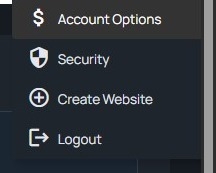
Under your name at the top right of the CMS, click Account Options.
Step 2: Open UI Settings
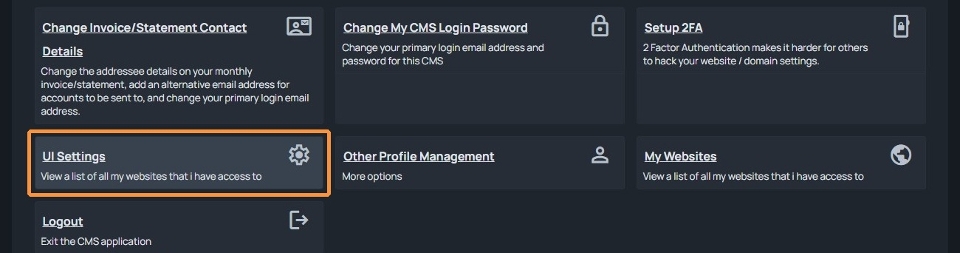
On the Account Options page, click UI Settings.
Step 3: Choose Light Mode or Dark Mode
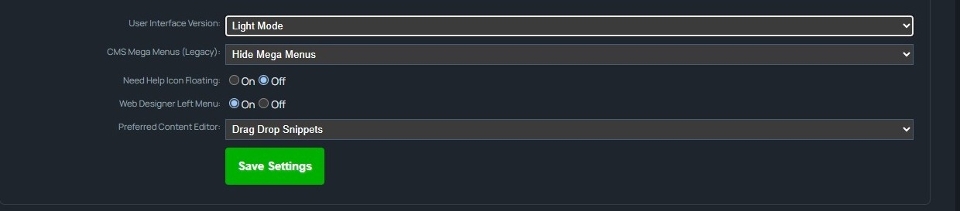
Under User Interface Version, select the Light Mode or Dark Mode option.
Step 4: Save your settings
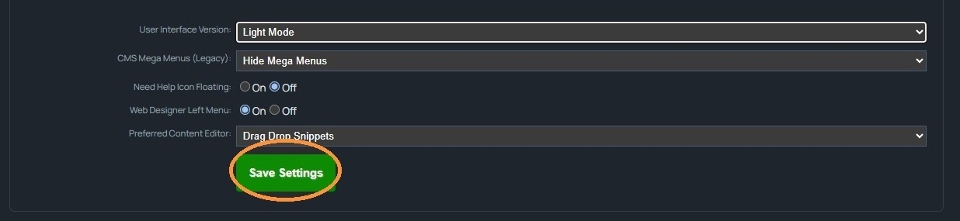
Click the green Save Settings button to apply your choice.
Tips
- To switch back, follow the same steps and select the other option under User Interface Version.
- Other options on the UI Settings page, such as CMS Mega Menus, Need Help Icon Floating, Web Designer Left Menu and Preferred Content Editor, stay as they are unless you change them.
More From This Section
Here are some tips on finding the right answers in this FAQ
You may find it easier to print out the following steps to help create your website.
This page quickly outlines the toolbar functions in the editor
How to add a logo to your website
Adding a Favicon to your site.
A quick overview of the editor buttons and what they do
Read here about the importance of publishing changes, and how the CMS works.
You can change the fonts used by the website via the DESIGN > Fonts and Text Colours button
Where to go to change/rename the text that appears in the heading of the website (standard templates)
You can edit your templates footer area via the Design menu.
How to change your contact details on the site and your account
How to use the Drag and Drop editor including adding links
Add or create a button link in your content using the drag drop editor
You can give your pages unique filenames and rename in bulk as needed
Select the text you want to link and click the chain icon to launch the link wizard
You can style a link as a button in the TinyMCE editor.
If you have more than one website here is how to switch between them.
You can change settings to do with any page via the OPTIONS tab.
Not sure about website terminology? Find the definitions of all the web-related terms we use
Detailed instructions on removing stored information from your browser.
This is the most common issue our support desk faces. Browsers cache pages and this causes you to see old/stale content. If this is your issue, there are several answers...
The preferred web browsers for editing content in our CMS is Google Chrome - for both PC and Mac. However, we do widely support Internet Explorer, Firefox, Safari, Opera, etc. Usage of our WYSIWYG rich content component may differ from browser to browser.
Here is a quick list of things that everyone should know.
If you keep getting logged out after only a few steps, then the problem is to do with session cookies... You need to enable these... here are some tips
Switch your CMS dashboard between Light Mode and Dark Mode from UI Settings in Account Options. It takes four quick steps.
FAQ Topics
The Basics
Building your site
- Pages
- Content Editor Modes Explained
- - DRAG DROP Editor (Default)
- - CONTENTBOX Editor (Advanced)
- - WORD STYLE Editor (TinyMCE)
- - LIVE Editor (Click to Edit Mode)
- Styling Content
- Images / Backgrounds
- Banners and Sliders
- Uploading content
- Design Templates
- Forms
- More Q & A
- Menus
- Mobile Styling and Optimisation
Advanced Page Types
E-Commerce
- Shopping Basics
- Product Pricing, Currencies
- Category Management
- Produkte
- Product Options
- Layout and Formatting
- Zahlungsoptionen
- Freight - Couriers
- Processing Orders
- Orders / Invoices
- Advanced Ecommerce
- Plugins
- Wholesale
- Bookings Management System
- Stock & Quantities
- Vouchers, Discounts, Loyalty Points
- Selling Photos / Prints
- Shopping Cart Add-on Page types
- Advanced APIs / Add ons
- Kassensystem (POS)
- Reports
Email & Membership
- Member Management
- Members Pages / Template Customisations
- From Addresses and Reply To Email Notifications
- Global Enquiry form options
- Standard Field Names
- Webmail
- Bulk Email
- CRM Features
- Email Campaigns
- Forums & Blogs
- Pop3/Imap Email Services
- Scams and Hoaxes
- Lead Magnets / Growing Your Customer Database
Promoting your site
Advanced
- Power User Options
- Form Spam Filtering
- Wordpress
- PHP Setup
- [TAGS]
- FONTS - Embedding Web Fonts
- jQuery snippets
- FONTS - Uploading local font files
- Search External Links / Import external content
- HTML / CSS Snippets
- Loading additional Material Symbols styles
- FAQ Help Map
- Advanced Template Customisation, CSS, etc
- Languages and Translations
- Importing Content from Another Platform
