
How to add weight to a Product Variation
- Click the Produkte button or E-commerce > Edit Products
- Navigate to the category containing the required product (If applicable)
- Find the required product in the list, and click the Variants button (e.g. 4 variants) at the bottom of the product, to quickly go to the Options/Sizes area for the product.
- Click the Green Pencil icon next to the variant to open the variant options
- Add your require weight in grams to the Freight Weight Field.
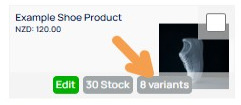
Example of a Product shown in the VIEW PRODUCTS area with a variant shortcut button to quickly get you to the variants settings area.
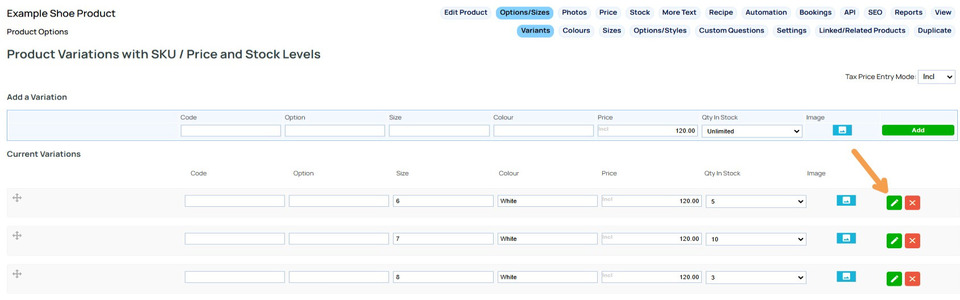
The Options/Sizes screen will show the variants listed vertically. Click the GREEN PENCIL icon next to the required variant.
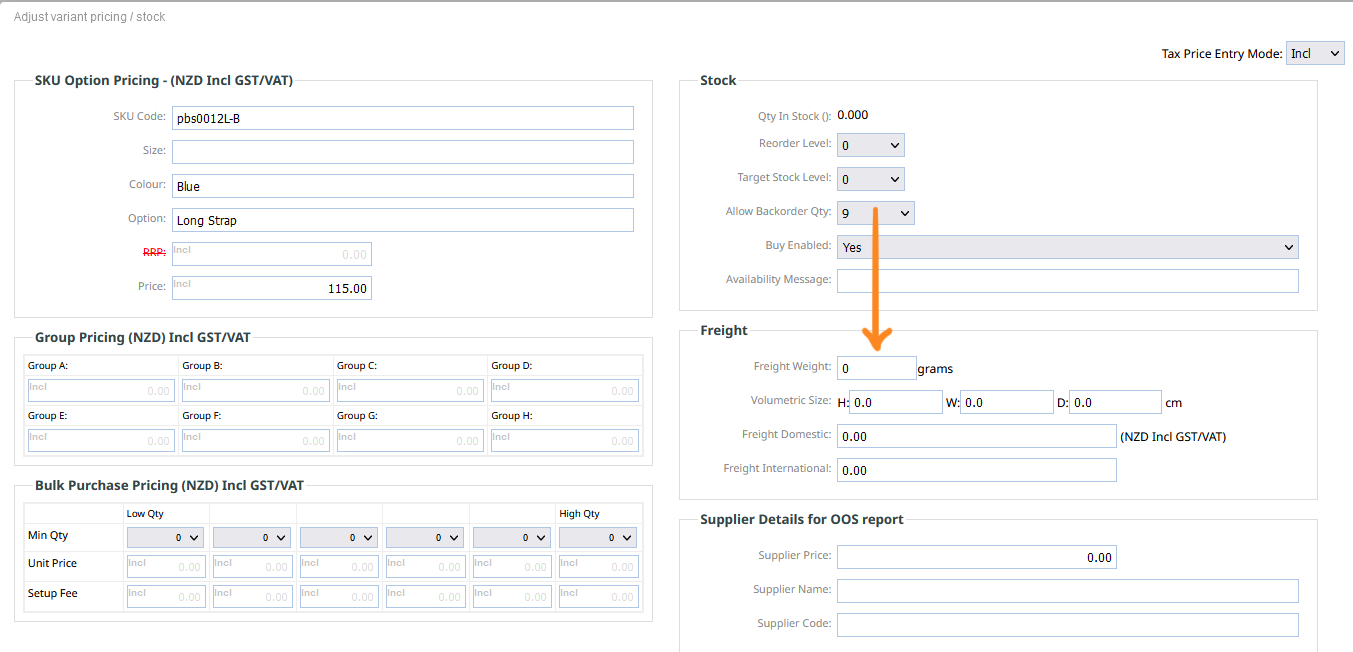
You can then enter the weight in grams in the Freight Weight field as indicated.
More From This Section
There are three ways of adding additional options to your product. Product Variations with Stock Levels, the less complex (Simple) Product Options, or as Additional Custom Questions
Once the product has been created you can go in and add variations via the OPTIONS/SIZES tab
If you have product variations with Stock / SKU codes here is where you can go to delete or edit and option
Custom questions are a great way to collect additional information from customers that is not tracked as stock.
How do I include colour choices with my shopping products as well as sizes? Or how do i give different styles a different code or stock on hand quantity?
You can set the option layout to be dropdowns, swatches, single price and more
You can rename Colour, Size, and Option via the DESIGN > REWORD TITLES AND PROMPTS area.
No product option is set when a customer views the product, but you can choose to make one to be the default
With Product Variations you can enable a setting which will allow customers to add multiple options at once. Great for B2Bs.
With Product Variations you can choose to show the range of prices available rather than the main product price.
You can add image swatches to your colours, sizes and options to your Product Variations and set them to display in the product area and category list
You can add image swatches to your colours, sizes and options and set them to display in the product area and category list
Simple Product Options: global options allow you to define colours, sizes and styles as reusable options that can be applied to any product. You can centrally manage images, pricing, or removal of those colours/sizes/styles and then apply them across products or categories in bulk.
If you set the Display Stock Level to Quantity number the options will show the stock available.
With Product Varations you can set a product up so that the main product image can change when a swatch or option is selected. If using swatches the swatch can be a different image from the one that replaces the main product image.
If your Ecommerce Store has products with product variations, you can update the pricing for each variation via the Options / Sizing tab when editing the product.
Revert variations back to basic size/colour/style options.
Please see the category management area, as we consider that make/model/year is more about findability, and not an option of a product itself.
If your Ecommerce Store has products with product variations, you can add weight values for each variation via the Options / Sizing tab when editing the product.
Remember a customers choice for size, style or colour, so that it defaults for future purchases.
If you have added a product as a Product Variation, you can covert it to an standard Product if required.
FAQ Topics
The Basics
Building your site
- Pages
- Content Editor Modes Explained
- - DRAG DROP Editor (Default)
- - CONTENTBOX Editor (Advanced)
- - WORD STYLE Editor (TinyMCE)
- - LIVE Editor (Click to Edit Mode)
- Styling Content
- Images / Backgrounds
- Banners and Sliders
- Uploading content
- Design Templates
- Forms
- More Q & A
- Menus
- Mobile Styling and Optimisation
Advanced Page Types
E-Commerce
- Shopping Basics
- Product Pricing, Currencies
- Category Management
- Produkte
- Product Options
- Layout and Formatting
- Zahlungsoptionen
- Freight - Couriers
- Processing Orders
- Orders / Invoices
- Advanced Ecommerce
- Plugins
- Wholesale
- Bookings Management System
- Stock & Quantities
- Vouchers, Discounts, Loyalty Points
- Selling Photos / Prints
- Shopping Cart Add-on Page types
- Advanced APIs / Add ons
- Kassensystem (POS)
- Reports
Email & Membership
- Member Management
- Members Pages / Template Customisations
- From Addresses and Reply To Email Notifications
- Global Enquiry form options
- Standard Field Names
- Webmail
- Bulk Email
- CRM Features
- Email Campaigns
- Forums & Blogs
- Pop3/Imap Email Services
- Scams and Hoaxes
- Lead Magnets / Growing Your Customer Database
Promoting your site
Advanced
- Power User Options
- Form Spam Filtering
- Wordpress
- PHP Setup
- [TAGS]
- FONTS - Embedding Web Fonts
- jQuery snippets
- FONTS - Uploading local font files
- Search External Links / Import external content
- HTML / CSS Snippets
- Loading additional Material Symbols styles
- FAQ Help Map
- Advanced Template Customisation, CSS, etc
- Languages and Translations
- Importing Content from Another Platform
