
Switch your POS between Light Mode and Dark Mode to suit your screen, your lighting and your own preference. Dark Mode is easier on the eyes in dimly lit venues, while Light Mode gives a bright, high contrast display in well lit shops.
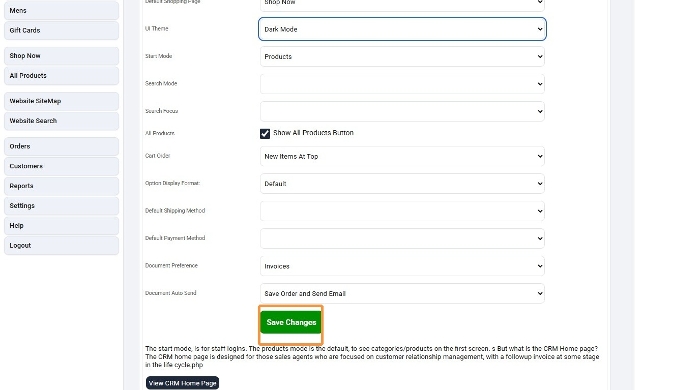
The theme is set from the UI Theme option in POS Settings. Follow the steps below to change it.
Step 1: Open POS Settings
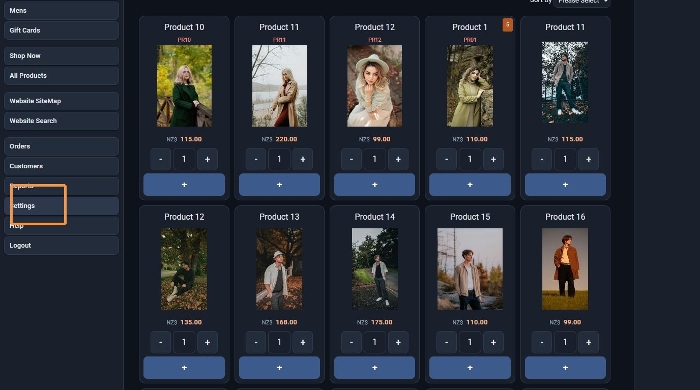
Launch the POS from the E-Commerce area, then click Settings in the menu on the left.
Step 2: Choose Light Mode
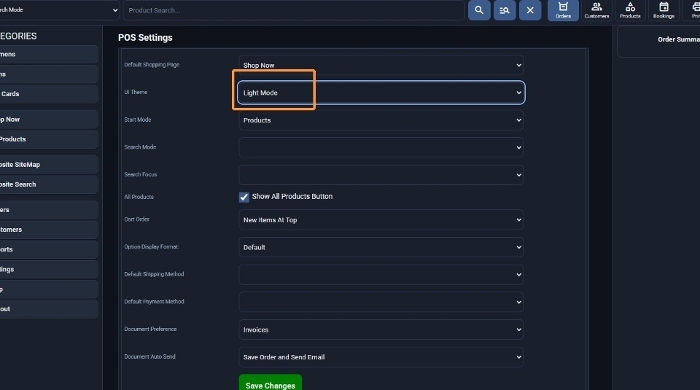
On the POS Settings page, find the UI Theme drop down and select Light Mode.
Step 3: Save Light Mode
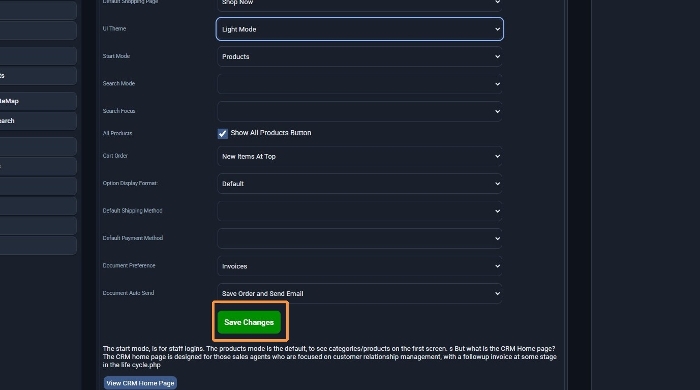
Scroll to the bottom of the page and click the green Änderungen speichern button to apply Light Mode.
Switch to Dark Mode
To change back, open Settings again, click the UI Theme drop down and select Dark Mode.
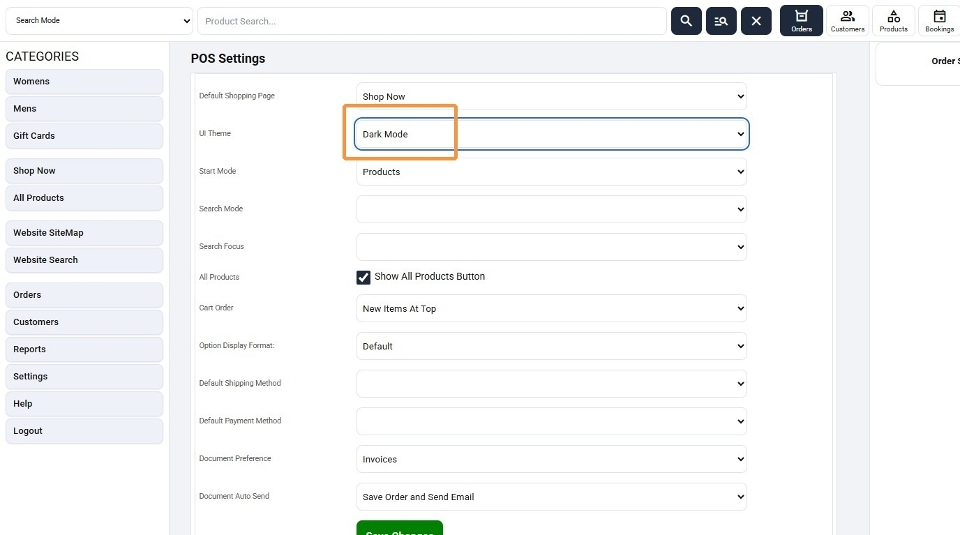
Click the green Änderungen speichern button to apply Dark Mode.
Tips
- Your theme will not change until you click Änderungen speichern.
- Other POS settings on this page, such as Start Mode, Cart Order and Document Preference, stay as they are unless you change them.
For the other options on this page, see the POS Settings help entry.
More From This Section
FAQ Topics
The Basics
Building your site
- Pages
- Content Editor Modes Explained
- - DRAG DROP Editor (Default)
- - CONTENTBOX Editor (Advanced)
- - WORD STYLE Editor (TinyMCE)
- - LIVE Editor (Click to Edit Mode)
- Styling Content
- Images / Backgrounds
- Banners and Sliders
- Uploading content
- Design Templates
- Forms
- More Q & A
- Menus
- Mobile Styling and Optimisation
Advanced Page Types
E-Commerce
- Shopping Basics
- Product Pricing, Currencies
- Category Management
- Produkte
- Product Options
- Layout and Formatting
- Zahlungsoptionen
- Freight - Couriers
- Processing Orders
- Orders / Invoices
- Advanced Ecommerce
- Plugins
- Wholesale
- Bookings Management System
- Stock & Quantities
- Vouchers, Discounts, Loyalty Points
- Selling Photos / Prints
- Shopping Cart Add-on Page types
- Advanced APIs / Add ons
- Kassensystem (POS)
- Reports
Email & Membership
- Member Management
- Members Pages / Template Customisations
- From Addresses and Reply To Email Notifications
- Global Enquiry form options
- Standard Field Names
- Webmail
- Bulk Email
- CRM Features
- Email Campaigns
- Forums & Blogs
- Pop3/Imap Email Services
- Scams and Hoaxes
- Lead Magnets / Growing Your Customer Database
Promoting your site
Advanced
- Power User Options
- Form Spam Filtering
- Wordpress
- PHP Setup
- [TAGS]
- FONTS - Embedding Web Fonts
- jQuery snippets
- FONTS - Uploading local font files
- Search External Links / Import external content
- HTML / CSS Snippets
- Loading additional Material Symbols styles
- FAQ Help Map
- Advanced Template Customisation, CSS, etc
- Languages and Translations
- Importing Content from Another Platform
