
You can now integrate with Fastway couriers API for more focused freight pricing and printing of labels.
Selecting the Fastway option for freight will require you to add a few additional special codes and settings.
Customers will be asked to enter their postcode and suburb at the shopping cart stage, allowing Fastway to calculate a final price for shipping.
You can add additional frieght fees if you like for handling and wrapping costs.
How to set up Fastway freight
The Fastway integration requires an API key to use the freight pricing service. Click here to sign up and obtain an API key.
Once you have signed up, go to the Freight setup page for your shopping cart. Mouse over "Shopping" and click "Shipping/Freight". In the "Add Freight Destination" box, or in an existing freight option, fill out the destination details and shipping name.
Select the country as New Zealand. If the freight pricing requires handling and wrapping costs, add additional pricing under Base Fee, Per Unit Fee, and Weight Based Shipping.
Under "Courier Automation", select "Fastway Couriers". A new configuration section will appear as below:
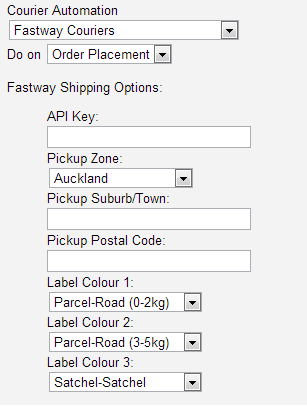
Enter the API key obtained from Fastway into the API Key box.
Enter the location details for the store or warehouse where the pickup will be made under "Pickup Zone", "Pickup Suburb/Town", and "Pickup Postal Code".
Label colour options are selected by default to find the lowest price labels from the available freight options.
Advanced users can select their own label preferences. Freight pricing is calculated based on selected label preference in the order of Label Colour 1, Label Colour 2, then Label Colour 3.
Fastway pricing is calculated based on the total shipping weight, the store location and the delivery details the customer will be entering. This means to accurately calculate shipping, your products should have a set weight. To set the weight for your products, edit the product, then click "Price/Qty" in the grey buttons at the top right. In the "Freight / Weight" section, set the "Freight Weight" for the product.
More From This Section
FAQ Topics
The Basics
Building your site
- Pages
- Content Editor Modes Explained
- - DRAG DROP Editor (Default)
- - CONTENTBOX Editor (Advanced)
- - WORD STYLE Editor (TinyMCE)
- - LIVE Editor (Click to Edit Mode)
- Styling Content
- Images / Backgrounds
- Banners and Sliders
- Uploading content
- Design Templates
- Forms
- More Q & A
- Menus
- Mobile Styling and Optimisation
Advanced Page Types
E-Commerce
- Shopping Basics
- Product Pricing, Currencies
- Category Management
- 产品
- Product Options
- Layout and Formatting
- 付款方式
- Freight - Couriers
- Processing Orders
- Orders / Invoices
- Advanced Ecommerce
- Plugins
- Wholesale
- Bookings Management System
- Stock & Quantities
- Vouchers, Discounts, Loyalty Points
- Selling Photos / Prints
- Shopping Cart Add-on Page types
- Advanced APIs / Add ons
- 销售点(POS)
- Reports
Email & Membership
- Member Management
- Members Pages / Template Customisations
- From Addresses and Reply To Email Notifications
- Global Enquiry form options
- Standard Field Names
- Webmail
- Bulk Email
- CRM Features
- Email Campaigns
- Forums & Blogs
- Pop3/Imap Email Services
- Scams and Hoaxes
- Lead Magnets / Growing Your Customer Database
Promoting your site
Advanced
- Power User Options
- Form Spam Filtering
- Wordpress
- PHP Setup
- [TAGS]
- FONTS - Embedding Web Fonts
- jQuery snippets
- FONTS - Uploading local font files
- Search External Links / Import external content
- HTML / CSS Snippets
- Loading additional Material Symbols styles
- FAQ Help Map
- Advanced Template Customisation, CSS, etc
- Languages and Translations
- Importing Content from Another Platform
