
How to add or remove a column from a Snippet Block
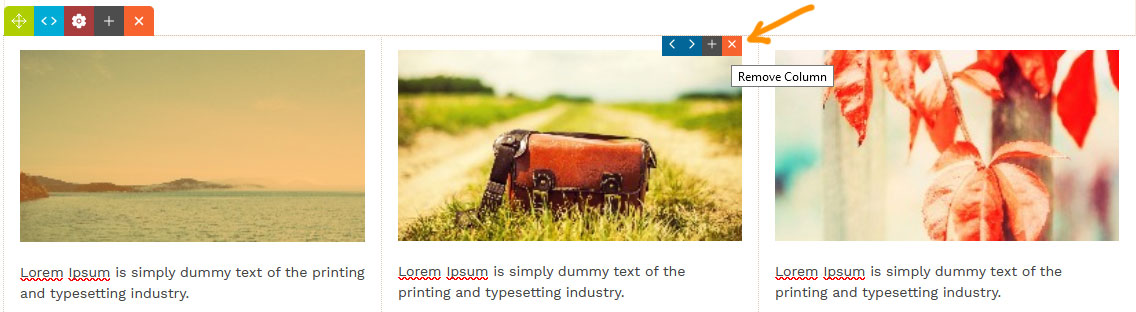
To remove a column.
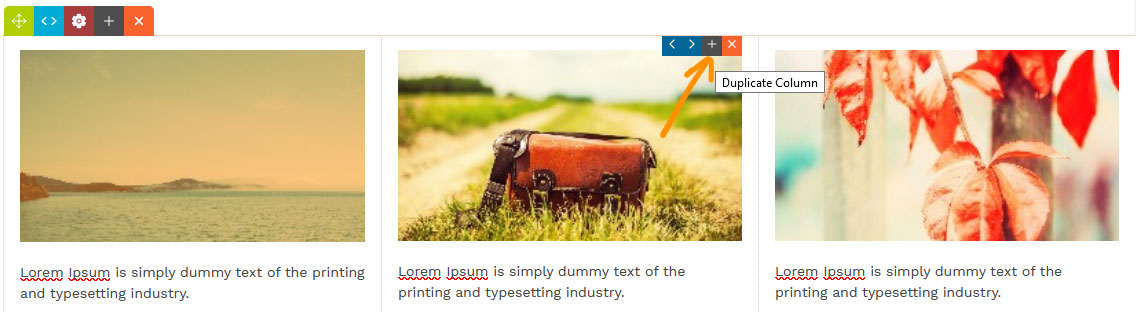
You can add a column to a snippet block by duplicating an existing column.
Hover over the column and click the GREY + ICON in the top-right of the column area.
In the example below clicking the icon will remove the middle column and content, changing the snippet to a 2 column Snippet Block.
To remove a column.
Hover over the column and click the ORANGE X ICON in the top-right of the column area.
More From This Section
You can add rounded corners and borders via the Style Editor popup.
You can add or remove columns using the + and X column tool icons
You can move columns left/right within the Snippet Block
You can resize columns within the Snippet Block
You can edit the HTML manually via the row-tools or via the Style Modal popup.
By default the width of the snippet blocks attempt to stretch to the full width of the content area, but you can set a max-width.
Within the CROP EDITOR popup options is the ability to apply preset COLUMN STYLES to reposition column content.
You can create and manage gradient colours via the Colour Panel in the Drag and Drop and Contentbox editors.
FAQ Topics
Building your site
- Pages
- Content Editor Modes Explained
- - DRAG DROP Editor (Default)
- - CONTENTBOX Editor (Advanced)
- - WORD STYLE Editor (TinyMCE)
- - LIVE Editor (Click to Edit Mode)
- Styling Content
- Images / Backgrounds
- Banners and Sliders
- Uploading content
- Design Templates
- Forms
- More Q & A
- Menus
- Mobile Styling and Optimisation
Advanced Page Types
E-Commerce
- Shopping Basics
- Product Pricing, Currencies
- Category Management
- Productos
- Product Options
- Layout and Formatting
- Opciones de pago
- Freight - Couriers
- Processing Orders
- Orders / Invoices
- Advanced Ecommerce
- Plugins
- Wholesale
- Bookings Management System
- Stock & Quantities
- Vouchers, Discounts, Loyalty Points
- Selling Photos / Prints
- Shopping Cart Add-on Page types
- Advanced APIs / Add ons
- Punto de venta (POS)
- Reports
Email & Membership
- Member Management
- Members Pages / Template Customisations
- From Addresses and Reply To Email Notifications
- Global Enquiry form options
- Standard Field Names
- Webmail
- Bulk Email
- CRM Features
- Email Campaigns
- Forums & Blogs
- Pop3/Imap Email Services
- Scams and Hoaxes
- Lead Magnets / Growing Your Customer Database
Promoting your site
Advanced
- Power User Options
- Form Spam Filtering
- Wordpress
- PHP Setup
- [TAGS]
- FONTS - Embedding Web Fonts
- jQuery snippets
- FONTS - Uploading local font files
- Search External Links / Import external content
- HTML / CSS Snippets
- Loading additional Material Symbols styles
- FAQ Help Map
- Advanced Template Customisation, CSS, etc
- Languages and Translations
- Importing Content from Another Platform
