
Tested on the new Outlook for Windows November 2024.
1) Go to the settings cog in Windows Outlook App top right.
2) Choose Add Account
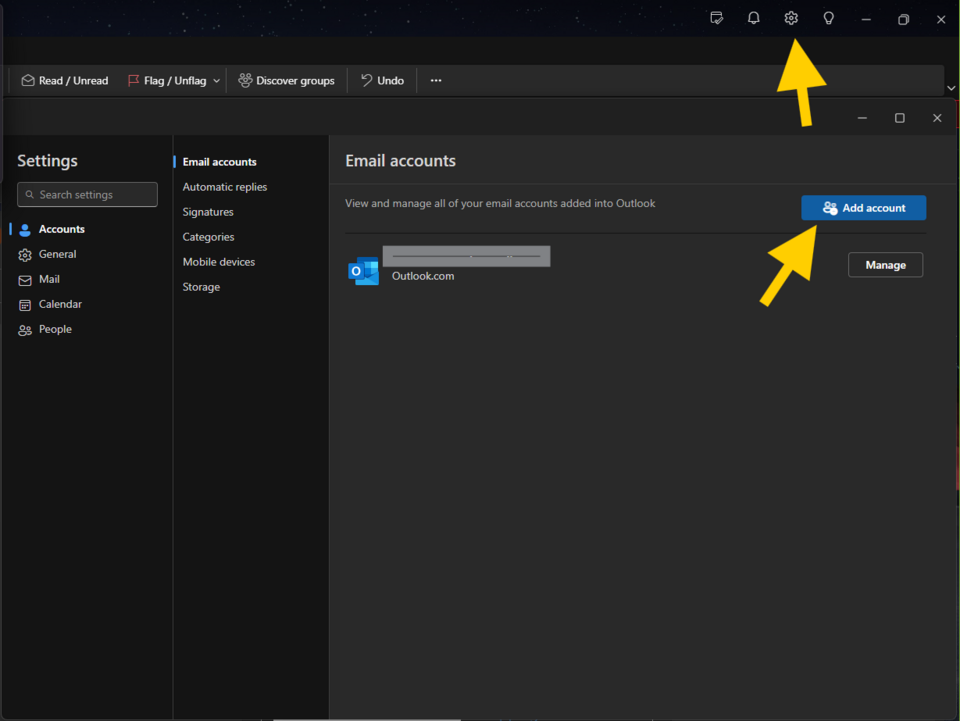
3) Add your email address in and press continue

4) Enter your password as found in the CMS under the Domains/Email tab in your email setup.
5) Toggle on show more.

6) Disable Use recommended settings
7) Enter settings as below screenshots.
8) Note that you should enter our server names, and not any suggested server names!
9) Select continue once all the incoming and outgoing server settings are entered.
10) You should now have a success message.


Extra screenshot of final settings once account has been added:

More From This Section
There are several ways that email can be added/accessed on your domain name. Email forwarding, POP3 Mailbox Accounts, IMAP Mailbox Accounts, Google Suite/Apps, Microsoft Office 365, Server Name / MX Record change, Web Mail
You can now add new POP3 or IMAP email mailboxes directly through our CMS. Just click on the red email button under your domain name, then follow the directions
You can find your email mailbox settings via the DOMAINS / EMAILS button in the main menu.
Are you getting the following error message when sending a lot of emails from your desktop? "Recipient address rejected: Rate limit reach, retry later"
How to change your email password.
Known good settings for the Thunderbird Email Client
IMAP settings for the new Outlook for Windows (replacing Windows Mail) This is different to Outlook 365 - please see other help files.
Settings for Apple iOS / iPadOS products
How to set up your email on most Samsung phones.
Known settings for Gmail on Android
Outlook for Mobile is not compatible with our mail servers when trying to connect via a secure (SSL) connection.
Setting up email in the default OSX email client.
You should normally be able to let OSX detect the settings, but here are the settings shown in you uncheck Automatically manage connection settings.
We've setup our own iphones this way, works well, it uses the iphone/MS Exchange integration method, even though you are really using GMAIL or Google Apps.
Learn how to move away from xtra/yahoo/hotmail/etc to an awesome gmail experience
Do you have missing emails in your inbox? Have emails disappeared from your inbox?
You can setup a mail account hosted with us in your standard Gmail account by linking it as a third party account
Make sure you are using the incoming and outgoing mail servers provided by our instructions inside the CMS. Incoming: mail.cms-tool.net Outgoing: smtp.cms-tool.net
If you work from multiple locations or through different Internet Providers, then you may find changing your SMTP server all the time is a real hassle
How can i reduce/minimise the amount of spam I receive?
If some emails are not being delivered to you, find out what spam filtering is happening on our servers
How to set your 'reply to' address to your new personalised domain email address
You can have as many email aliases as you require, but limited pop mailboxes.
What is a forwarding email address and when do I need one?
Use this procedure to determine the problem with your email
Yes simply enter the two email addresses in the to field separated by semicolon and no spaces
There are lots of steps in email going from our web forms to your inbox, learn the process here if you are needing to debug email issues
if you have the ability to define SPF records or whitelist SMTP servers, please use include:spf.cms-tool.net
Copies all emails and folders from old IMAP server to new IMAP server
Learn about how we block spam, and how email may be blocked by other ISPs also.
If you should want to view your DMARC reports, here is how to find them
If you have email services with us, you can have an auto responder if you are away on holiday. Here's how.
May 2026 settings tested as working with the office365 desktop client. (This standalone app looks to have been replaced with a new app - see New Outlook guide above)
(This standalone app looks to have been replaced with a new app - see New Outlook guide above)
If you can connect to your mailbox but no mail is downloaded - see this troubleshooting tip. (This standalone app looks to have been replaced with a new app - see New Outlook guide above)
FAQ Topics
Building your site
- Pages
- Content Editor Modes Explained
- - DRAG DROP Editor (Default)
- - CONTENTBOX Editor (Advanced)
- - WORD STYLE Editor (TinyMCE)
- - LIVE Editor (Click to Edit Mode)
- Styling Content
- Images / Backgrounds
- Banners and Sliders
- Uploading content
- Design Templates
- Forms
- More Q & A
- Menus
- Mobile Styling and Optimisation
Advanced Page Types
E-Commerce
- Shopping Basics
- Product Pricing, Currencies
- Category Management
- Ngā Hua
- Product Options
- Layout and Formatting
- Ngā Kōwhiringa Utu
- Freight - Couriers
- Processing Orders
- Orders / Invoices
- Advanced Ecommerce
- Plugins
- Wholesale
- Bookings Management System
- Stock & Quantities
- Vouchers, Discounts, Loyalty Points
- Selling Photos / Prints
- Shopping Cart Add-on Page types
- Advanced APIs / Add ons
- Te Wāhi Hoko (POS)
- Reports
Email & Membership
- Member Management
- Members Pages / Template Customisations
- From Addresses and Reply To Email Notifications
- Global Enquiry form options
- Standard Field Names
- Webmail
- Bulk Email
- CRM Features
- Email Campaigns
- Forums & Blogs
- Pop3/Imap Email Services
- Scams and Hoaxes
- Lead Magnets / Growing Your Customer Database
Promoting your site
Advanced
- Power User Options
- Form Spam Filtering
- Wordpress
- PHP Setup
- [TAGS]
- FONTS - Embedding Web Fonts
- jQuery snippets
- FONTS - Uploading local font files
- Search External Links / Import external content
- HTML / CSS Snippets
- Loading additional Material Symbols styles
- FAQ Help Map
- Advanced Template Customisation, CSS, etc
- Languages and Translations
- Importing Content from Another Platform
