
Setting up email in OSX's default mail client is a resonably straightforward process using the default settings that Apples os detects.
If it comes up with an error after attempting to auto-configure however, the best approach is to delete the account as re-set the account up from scratch and try again.
If you are adding a new mailbox to your existing accounts managed via Apple Mail
If adding the mailbox as an additional account, you can add the new account by clicking the MAIL menu at the top of the screen, then ADD ACCOUNT.
From there follow the steps below:
Adding an account to Apple Mail
The screenshots / testing below is using OSX Big Sur
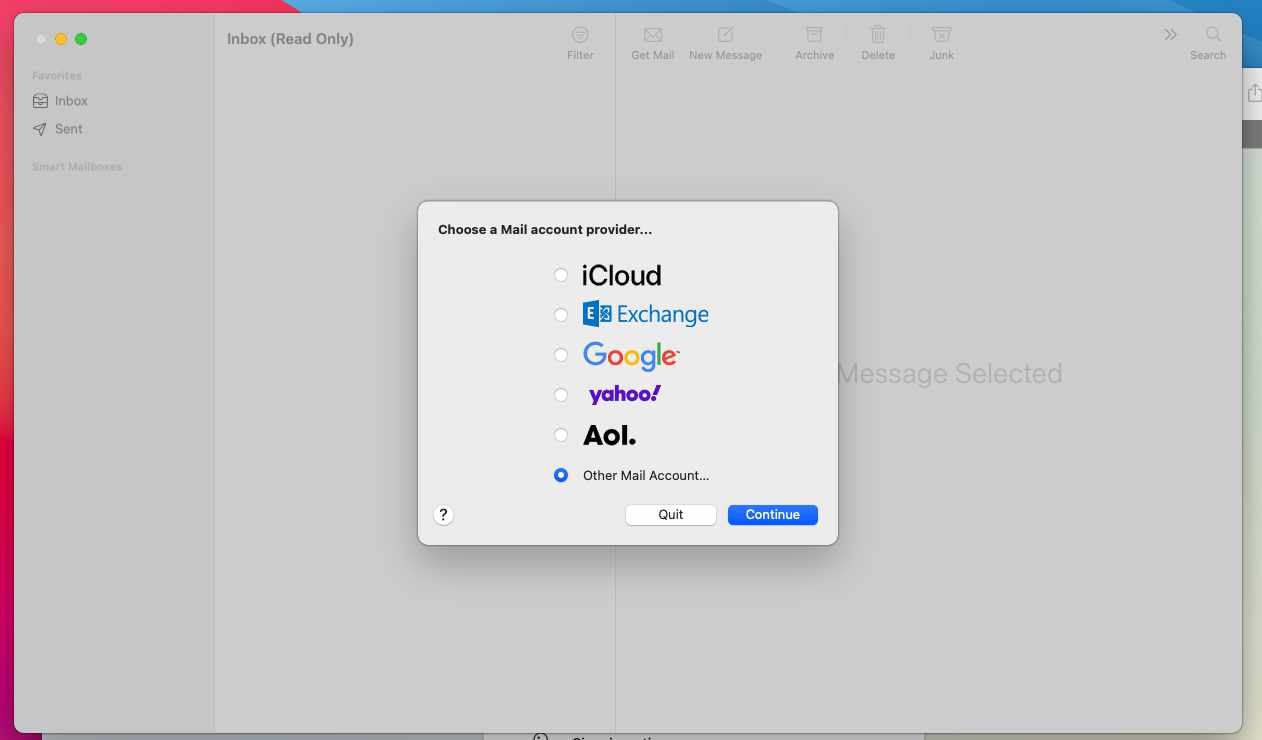
Step 1: Choose the OTHER MAIL ACCOUNT OPTION
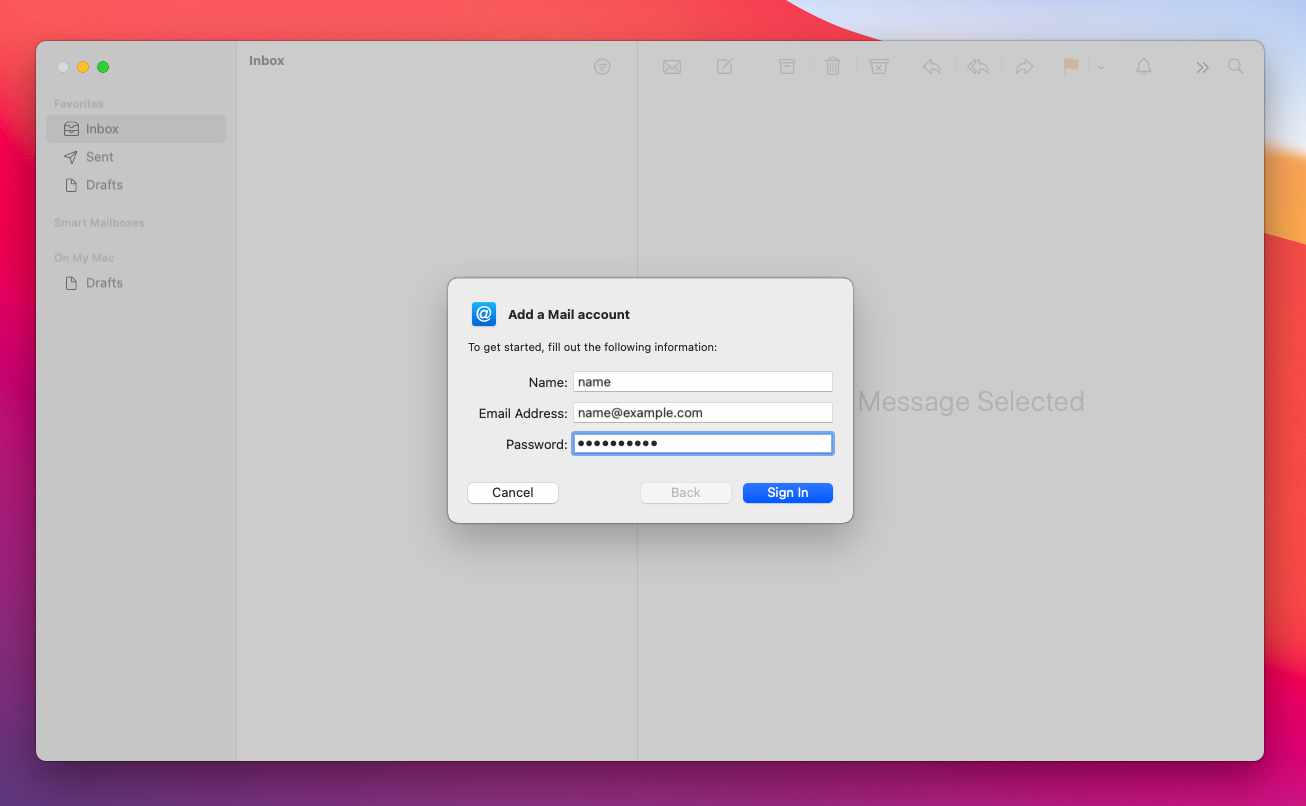
Step 2: Enter your name, full email address and account password and Sign In.
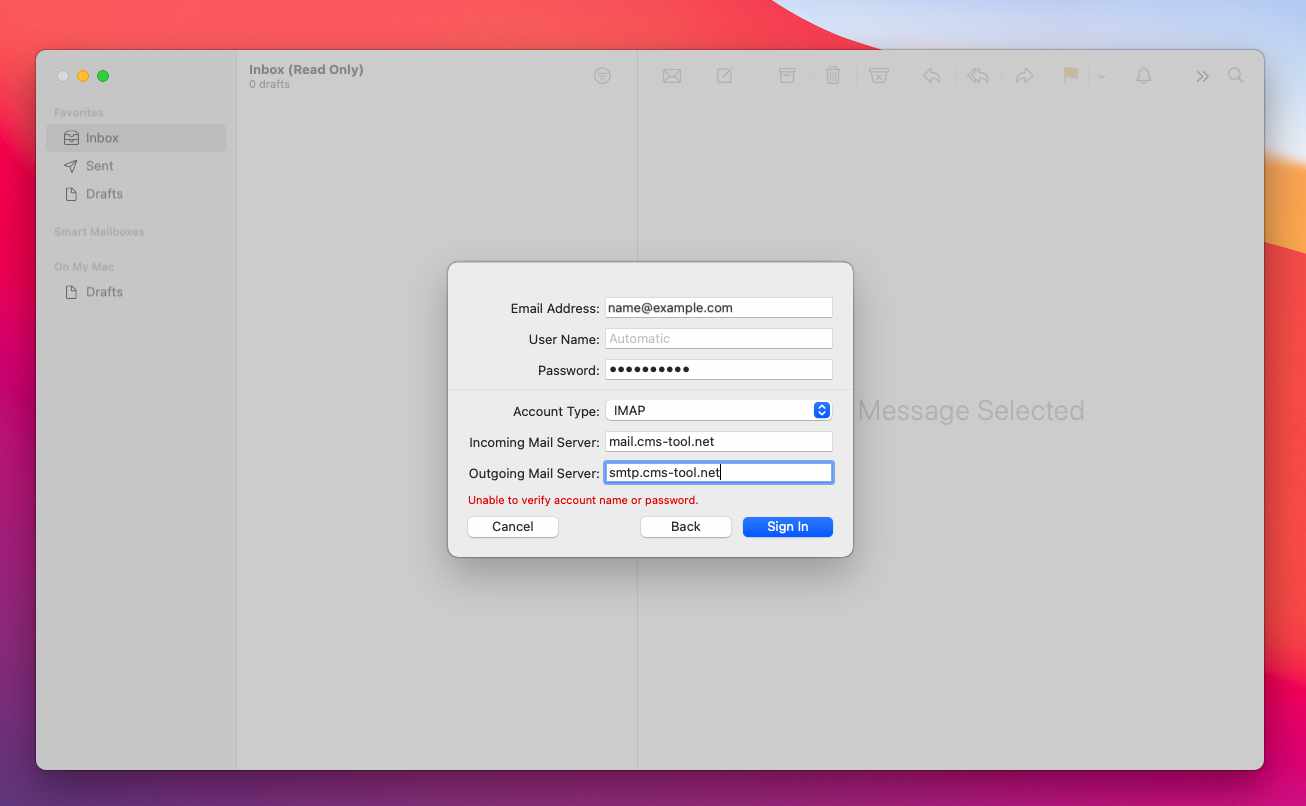
Step 3: If the credentials provided are correct you will be presented with the following screen showing an error UNABLE TO VERIFY ACCOUNT AND PASSWORD.
This is because the email client hasnt been able to detect the mail server config.
- Enter the INCOMING and OUTGOING mailserver settings.
- You can leave the username on Automatic.
- You can choose IMAP or POP, but people have generally reported more success with a POP setup. If any issues with IMAP you can use POP, just remember to set your settings for keeping mail on the server to what you require via MAIL > ACCOUNTS in the mail menu in the toolbar at the top of OSX.
- Click the Sign In button to finish setting up the account.
As mentioned above, if any issues with a new mailbox you can delete the account and re-setup. You can try to modify the port settings via MAIL > ACCOUNTS (or MAIL > Preferences > Server Settings) as well.
More From This Section
FAQ Topics
Building your site
- Pages
- Content Editor Modes Explained
- - DRAG DROP Editor (Default)
- - CONTENTBOX Editor (Advanced)
- - WORD STYLE Editor (TinyMCE)
- - LIVE Editor (Click to Edit Mode)
- Styling Content
- Images / Backgrounds
- Banners and Sliders
- Uploading content
- Design Templates
- Forms
- More Q & A
- Menus
- Mobile Styling and Optimisation
Advanced Page Types
E-Commerce
- Shopping Basics
- Product Pricing, Currencies
- Category Management
- Ngā Hua
- Product Options
- Layout and Formatting
- Ngā Kōwhiringa Utu
- Freight - Couriers
- Processing Orders
- Orders / Invoices
- Advanced Ecommerce
- Plugins
- Wholesale
- Bookings Management System
- Stock & Quantities
- Vouchers, Discounts, Loyalty Points
- Selling Photos / Prints
- Shopping Cart Add-on Page types
- Advanced APIs / Add ons
- Te Wāhi Hoko (POS)
- Reports
Email & Membership
- Member Management
- Members Pages / Template Customisations
- From Addresses and Reply To Email Notifications
- Global Enquiry form options
- Standard Field Names
- Webmail
- Bulk Email
- CRM Features
- Email Campaigns
- Forums & Blogs
- Pop3/Imap Email Services
- Scams and Hoaxes
- Lead Magnets / Growing Your Customer Database
Promoting your site
Advanced
- Power User Options
- Form Spam Filtering
- Wordpress
- PHP Setup
- [TAGS]
- FONTS - Embedding Web Fonts
- jQuery snippets
- FONTS - Uploading local font files
- Search External Links / Import external content
- HTML / CSS Snippets
- Loading additional Material Symbols styles
- FAQ Help Map
- Advanced Template Customisation, CSS, etc
- Languages and Translations
- Importing Content from Another Platform
