
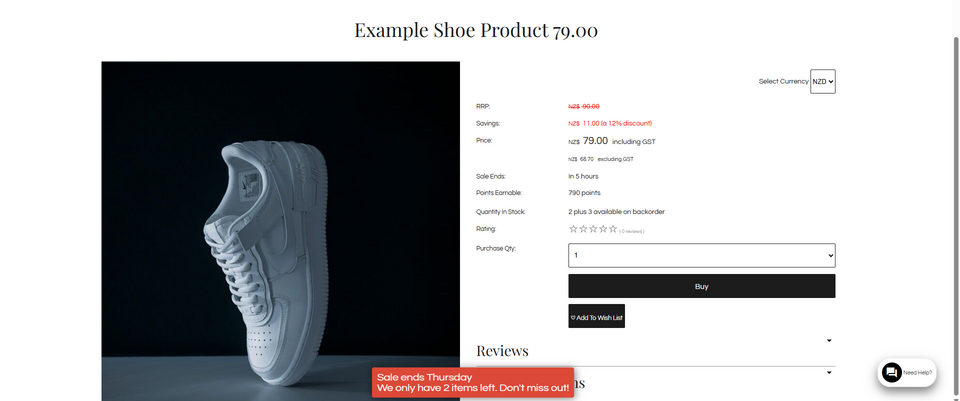
The Scarcity Messages plugin adds eye-catching messages to your website to create a sense of urgency and encourage customers to complete their purchase.
Messages appear at the bottom of the website by sliding in from the left of the screen, displaying for a short time, and then sliding back out.
Examples of scarcity messages include:
- Only 1 left! Don’t miss out.
- Sale ends 29th June! Shop now before it’s gone.
- Someone just bought this item!
- This item is popular!
Adding the Scarcity Messages Plugin
- Log in to your website administration area.
- へ移動 E-commerce.
- Scroll down to the Plugins section.
- Find the Scarcity plugin, or use the search box to search for Scarcity.
- Click Add Plugin.
The plugin will now be active on your website.
Plugin Settings
There are currently no additional settings for the Scarcity plugin.
Once the plugin has been added, the scarcity messages will automatically display on the website where applicable.
How the Messages Appear
When a message is triggered, it will:
- Slide into view from the left-hand side of the screen.
- Display the message to the customer.
- Remain visible briefly.
- Slide away from the screen.
This creates a subtle notification without interrupting the customer's browsing experience.
Good to Know
Scarcity messages are designed to add a little urgency to the shopping experience. They work particularly well for products with limited stock, sale items, or products that are proving popular with customers.
Only one active message category will display per section evaluated, though multiple criteria can combine into a single message block.
Notification Triggers & Default Wording
| カテゴリ | Condition / Threshold | Default Displayed Text | 注記 |
| Current Viewers | 2 or more other users viewing the product in the last 2 hours | "[X] others are viewing this item right now!" | Excludes the current user's session. |
| Current Viewers | Exactly 1 other user viewing the product in the last 2 hours | "Someone else is viewing this item right now!" | Displayed only if no "several others" message triggered. |
| Recent Purchases | Last sale date is today AND 2+ purchases occurred in the last 24 hours | "Several others bought this item today." | Requires an active last sale date flag. |
| Recent Purchases | Last sale date is today AND only 1 purchase occurred in the last 24 hours | "Somebody else just bought this item. It's popular!" | Shown as a fallback if under 2 purchases were logged today. |
| Ending Sale | Sale end date is within the next 7 days | "Sale ends [Day of Week]" | e.g., "Sale ends Friday". Appends to existing messages. |
| Sale Inventory | Remaining sale stock is between 1 and 9 items | "Only [X] left at this price" | Triggers only when sale stock is explicitly limited (> 0 and < 10). |
| Low Stock | Exactly 1 item left in stock | "We only have 1 item left. Don't miss out!" | Appends to existing scarcity stack. |
| Low Stock | Between 2 and 9 items left in stock | "We only have [X] items left. Don't miss out!" | Appends to existing scarcity stack. |
| Out of Stock | 0 items in stock, but backorders are enabled (backorder_maxqty > 0) | "We don't have any in stock, but more can be backordered. Don't miss out!" | Informs customer that ordering is still possible. |
| Out of Stock | 0 items in stock, backorders disabled (backorder_maxqty = 0) | "Sorry we are out of stock!" | Standard out-of-stock message. |
| General Sale
|
Product is discounted, but NO other scarcity message has been triggered yet | "On Sale! Don't miss out!" | Serves as a fallback promo message so discounted items still highlight urgency. |
Message Logic & Priority Behaviour
Hierarchy & Stacking:
Messages stack sequentially inside a container.
A product can display multiple notifications at once (e.g., Current Viewers + Sale Ending Date + Low Stock Warning).
Visitor Tracking Exclusions:
Visitor traffic indicators will not render while the site is in a publishing/preview mode
Fallback General Sale Badge:
The generic "On Sale! Don't miss out!" message is mutually exclusive, it only appears if the item is discounted AND no other viewer, purchase, sale date, or inventory scarcity messages were triggered.
Rewording
You can use the reword prompts area in the CMS to change the wording.
Rewording works on plain text or keyname. Keyname takes priority. Plain text mapping needs to be exact to work, including punctuation.
More From This Section
FAQ Topics
The Basics
Building your site
- Pages
- Content Editor Modes Explained
- - DRAG DROP Editor (Default)
- - CONTENTBOX Editor (Advanced)
- - WORD STYLE Editor (TinyMCE)
- - LIVE Editor (Click to Edit Mode)
- Styling Content
- Images / Backgrounds
- Banners and Sliders
- Uploading content
- Design Templates
- Forms
- More Q & A
- Menus
- Mobile Styling and Optimisation
Advanced Page Types
E-Commerce
- Shopping Basics
- Product Pricing, Currencies
- Category Management
- 製品
- Product Options
- Layout and Formatting
- 支払いオプション
- Freight - Couriers
- Processing Orders
- Orders / Invoices
- Advanced Ecommerce
- Plugins
- Wholesale
- Bookings Management System
- Stock & Quantities
- Vouchers, Discounts, Loyalty Points
- Selling Photos / Prints
- Shopping Cart Add-on Page types
- Advanced APIs / Add ons
- 販売時点管理(POS)
- Reports
Email & Membership
- Member Management
- Members Pages / Template Customisations
- From Addresses and Reply To Email Notifications
- Global Enquiry form options
- Standard Field Names
- Webmail
- Bulk Email
- CRM Features
- Email Campaigns
- Forums & Blogs
- Pop3/Imap Email Services
- Scams and Hoaxes
- Lead Magnets / Growing Your Customer Database
Promoting your site
Advanced
- Power User Options
- Form Spam Filtering
- Wordpress
- PHP Setup
- [TAGS]
- FONTS - Embedding Web Fonts
- jQuery snippets
- FONTS - Uploading local font files
- Search External Links / Import external content
- HTML / CSS Snippets
- Loading additional Material Symbols styles
- FAQ Help Map
- Advanced Template Customisation, CSS, etc
- Languages and Translations
- Importing Content from Another Platform
