
Adjust your POS settings to suit the way your business sells. From the settings page you can change the theme, the start screen, search options, cart order and your default shipping, payment and document options.
How to open POS Settings
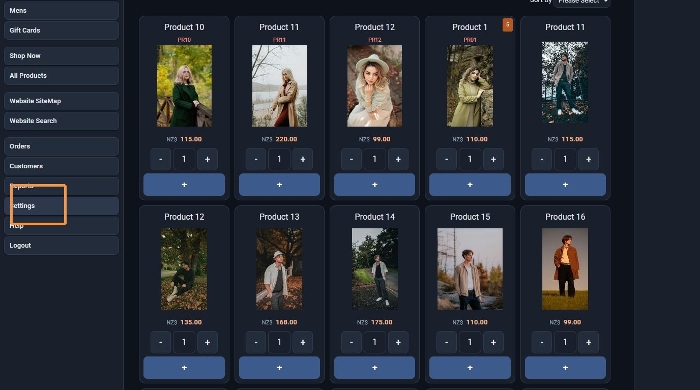
Launch the POS from the E-Commerce area, then click Settings in the menu on the left. It sits below Reports.
POS settings explained
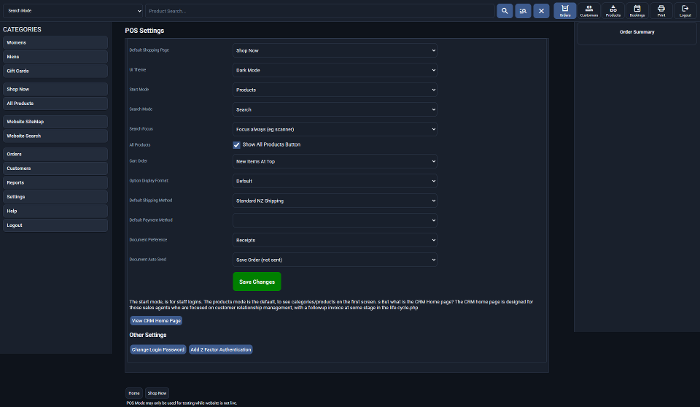
Each setting is explained below. After you change a setting, click the green Enregistrer les modifications button at the bottom of the list.
Display and layout
UI Theme
Switch the POS between Light Mode and Dark Mode. See Changing Between Dark & Light Mode POS for the steps.
Default Shopping Page
Choose the default shopping page for the POS, for example Shop Now.
Start Mode
Choose the first screen shown when user logs in. Products mode is the default and shows your categories and products on the first screen. CRM Home is designed for sales agents who focus on customer relationship management, with a follow up invoice at some stage in the customer life cycle. The View CRM Home Page button below the settings list opens it.
Show All Products Button
Adds an All Products category to the left side of the POS that shows all your products.
Cart Order
Choose if the newest items added to the cart appear at the top or the bottom of the cart.
Option Display Format
Choose the best format for product options in the POS layout, as it may be different to your website layout.
Searching
Search Mode
Choose the search mode the POS uses: Search, View or Add to cart.
Search Focus
Choose Focus Always (for example, if you use a scanner) or No auto focus (for example, if you use a mobile).
Checkout defaults
Default Shipping Method
Choose a default shipping method for when you are not doing a direct checkout.
Default Payment Method
Choose a default payment method for checkout, for example Eftpos.
Document Preference
Choose if the document sent is an invoice, order or receipt.
Document Auto Send
Choose the default action when you complete a sale:
- Save order and send email
- Save order (no email sent)
- Save quote and send email
- Save quote (no email sent)
Other settings
Below the settings list you will also find buttons to Change Login Password et Add 2 Factor Authentication for your POS login.
More From This Section
FAQ Topics
Building your site
- Pages
- Content Editor Modes Explained
- - DRAG DROP Editor (Default)
- - CONTENTBOX Editor (Advanced)
- - WORD STYLE Editor (TinyMCE)
- - LIVE Editor (Click to Edit Mode)
- Styling Content
- Images / Backgrounds
- Banners and Sliders
- Uploading content
- Design Templates
- Forms
- More Q & A
- Menus
- Mobile Styling and Optimisation
Advanced Page Types
E-Commerce
- Shopping Basics
- Product Pricing, Currencies
- Category Management
- Produits
- Product Options
- Layout and Formatting
- Options de paiement
- Freight - Couriers
- Processing Orders
- Orders / Invoices
- Advanced Ecommerce
- Plugins
- Wholesale
- Bookings Management System
- Stock & Quantities
- Vouchers, Discounts, Loyalty Points
- Selling Photos / Prints
- Shopping Cart Add-on Page types
- Advanced APIs / Add ons
- Point de vente (PDV)
- Reports
Email & Membership
- Member Management
- Members Pages / Template Customisations
- From Addresses and Reply To Email Notifications
- Global Enquiry form options
- Standard Field Names
- Webmail
- Bulk Email
- CRM Features
- Email Campaigns
- Forums & Blogs
- Pop3/Imap Email Services
- Scams and Hoaxes
- Lead Magnets / Growing Your Customer Database
Promoting your site
Advanced
- Power User Options
- Form Spam Filtering
- Wordpress
- PHP Setup
- [TAGS]
- FONTS - Embedding Web Fonts
- jQuery snippets
- FONTS - Uploading local font files
- Search External Links / Import external content
- HTML / CSS Snippets
- Loading additional Material Symbols styles
- FAQ Help Map
- Advanced Template Customisation, CSS, etc
- Languages and Translations
- Importing Content from Another Platform
