
ウェブサイトで電子書籍を販売するために知っておくべきことすべて
あなたの知識と情熱を電子書籍にしてウェブサイトで販売すれば、受動的な収入源を得ることができます。
We're going to explain how to do this in six steps from start to finish. They are:
- 電子書籍の執筆
- 電子書籍のフォーマット
- proofreading your eBook
- 電子書籍の表紙を作成する
- 電子書籍をウェブサイトにアップロードする
- 電子書籍のマーケティング
さあ始めましょう!
電子書籍の執筆
電子書籍を書く際の最初の仕事は、トピックを考えることです。理想的には、あなたのビジネスの業界に関連し、あなたが既によく知っている分野が理想的です。また、ターゲットオーディエンスが読みたい、もっと知りたいと思うトピックであることも重要です。
次に本のタイトルを決めますが、最後に残す人もいます。今決めておくことで、本を書き終えるまでのモチベーションを維持し、軌道修正することができます。
次は執筆です。これは、電子書籍の執筆を始めない、あるいは書き始めても最後まで書き上げない、主な障害でもあります。どうしても自分で書きたくない場合は、ゴーストライターを雇うことを検討してください。そうでなければ、本の簡単なアウトラインを作成し、アイデアを章に分け、各章を序論、中盤、結末に分けるという方法もあります。平均的な電子書籍は約35ページ、つまり約11,000語なので、執筆は可能です。
電子書籍のフォーマット
Once you have finished writing your eBook, your next job is to format it. Many people outsource this, as arranging spacing, images and the best file type can be challenging. If you do take the DIY formatting route, here are some tips to help you achieve a great result:
- 空白はあなたの味方です
- 全体を通して一貫したフォントとフォントサイズを使用する
- 適切な場所にわかりやすい画像や図を挿入する
- choose the most appropriate format for your eBook based upon where you are selling it. For instance, a PDF format is fine when selling through your Website World eCommerce site.
Proofreading Your eBook
購入したものや無料で受け取ったものに、文法上の誤りやスペルミスがあるのは誰も望んでいません。時間をかけて自分の文章を読み返し、間違いを見つけて修正しましょう。複数のスペルチェッカーでチェックするのも効果的です。
誰かに無料で本を配布し、感想や校正を手伝ってもらうのも良いでしょう。これは、ウェブサイトにアップロードして販売を始める前に、電子書籍をテストするのに良い方法です。
電子書籍の表紙を作成する
A well designed and thought out cover will help sell and promote your eBook. While it's not a book a customer will see on a shelf, pick up and look through, the cover will be seen on your website and in promotional materials. It will also be seen on the finished product too.
グラフィックデザイナーにカバーデザインを依頼することもできますし、Canvaなどのオンラインツールを使って自分で作成することもできます。
電子書籍をウェブサイトにアップロードする
オンライン販売をまだ行っていない場合は、まずウェブサイトにショッピングカートを追加する必要があります。ショッピングページにカートがない場合は、ページオプションでページタイプを「ショッピングカート」に変更してください。ショッピングページがない場合は、以下の手順に従ってください。
- Click [add a new page] under the blue page buttons on the left menu
- Click [Shopping cart layouts], select an appropriate shopping page. Shopping gallery is very photo centric, allowing customers to see a lot of product photos quickly, with just a small description under each. The other shopping page types have a thumbnail on the left, and a longer product description on the right, possibly with a buy button on the product listing pages.
- You will now be presented with [How to manage your catalogue] page. The grey button "Setup" is a good place to start as it list all the steps with links to setting up your shopping cart, simply start at the top and work down.
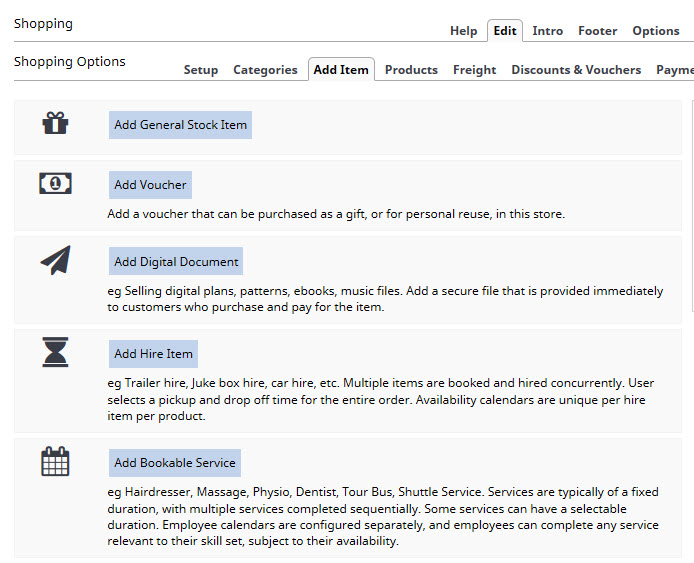
次に、電子書籍を商品として追加する必要があります。「ショッピング」タブに移動し、「新商品を追加」ボタンを選択します。次に、「デジタルドキュメントを追加」オプションを選択します。
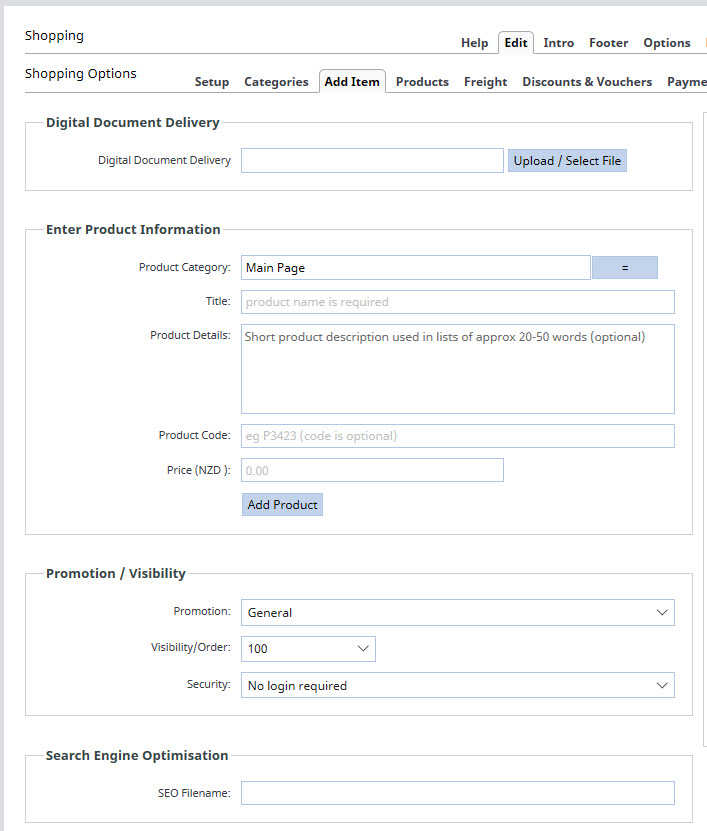
実際の商品と同様に、電子書籍の商品詳細と価格をすべて入力してください。唯一の違いは、電子書籍ファイルもアップロードする必要があることです。
Once those details are entered, there are further shopping cart options you can work through including:
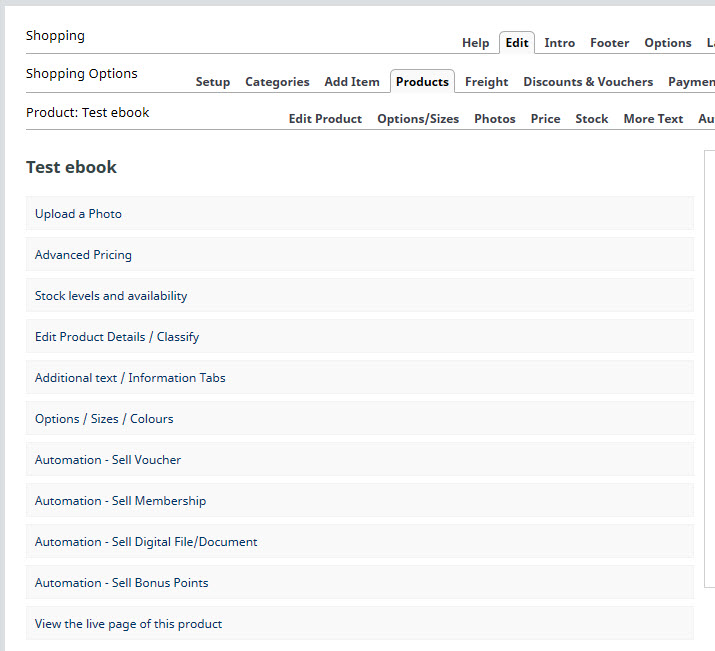
For your digital product specifically, you will need to edit the Automation - Sell Digital File/Document area if you haven't already linked the product with its corresponding file in the steps above. If you have, then a クレジットカードでの支払いが完了すると、添付ファイルへのリンクが購入者にメールで送信されます。 購入者が他の方法で支払う場合は、手動で文書を電子メールで送信する必要があります。 ドキュメントのダウンロード リンクは、URL の配布を防ぐために、1 日に最大 5 回しか機能しません。
Don't forget that you will also need to set up general shopping options such as freight, currency and payment gateways too.
電子書籍のマーケティング
電子書籍のマーケティングは、発売前だけでなく、ウェブサイトで公開した後でも、読者層への認知度向上のために始めることができます。電子書籍のマーケティングには、以下のようなアイデアがあります。
- 有料広告 - これにはソーシャルメディアサイトや個人のウェブサイトが含まれます
- ニュースレター - あなたのメールリストに送信するか、広告主にあなたの情報を彼らのリストに送信してもらうためにお金を支払う
- social media - add your eBook promotion to your social media accounts of Facebook, Instagram, Pinterest and others
- 特定のものを作成する ランディングページ 人を派遣する
- ブログや他のウェブサイトのページからリンクを追加する
- ゲストブログ
これで電子書籍を公開する準備ができました。 ウェブサイトを入手しましょう with us today.
Posted: Friday 6 September 2019
