
With the Multi Currency plugin you can add additional currency options, setting the currencies to a fixed conversion rate or using live rates.
- There is one main currency per shopping cart. Common currency codes include: USD,AUD,NZD,GBP,EUR.
- Please ensure any currency code you set is compatible with any payment gateway used on the website.
- The following currencies may use a $ symbol instead of a D, as this will be automatically converted before credit card processing. eg US$,NZ$,AU$
Fixed Currency Conversions
With fixed currency conversions, prices will be offered to customers at your fixed exchange rates. If you provide this option, you need to have compatible payment options for these currencies. Paypal will support about 15 currencies, many other payment gateways only support 1 or 2 currencies.
- For example, assuming your base currency was say NZD
- You could enter USD 0.60 as a fixed currency
- Changing the currency dropdown from NZD to USD would change the price by the fixed amount
That rate will be subject to change, do a search on google for "1 NZD IN USD" and copy the result. Increase the amount by about 2%-5% to account for currency fluctuations and FX margin costs.
Live Exchange Rates
Live exchange rates are only available on some currencies, you should review these from time to time to ensure you are happy with them, or set your own default.
If we have a live price, we will override your price daily, where you have opted in for live pricing.
Our live prices are based on "mid rates". Mid rates are the middle fx rate, between a buy/sell rate. You will find that Paypal and other payment options will use different rates that us. The merchant will likely lose.
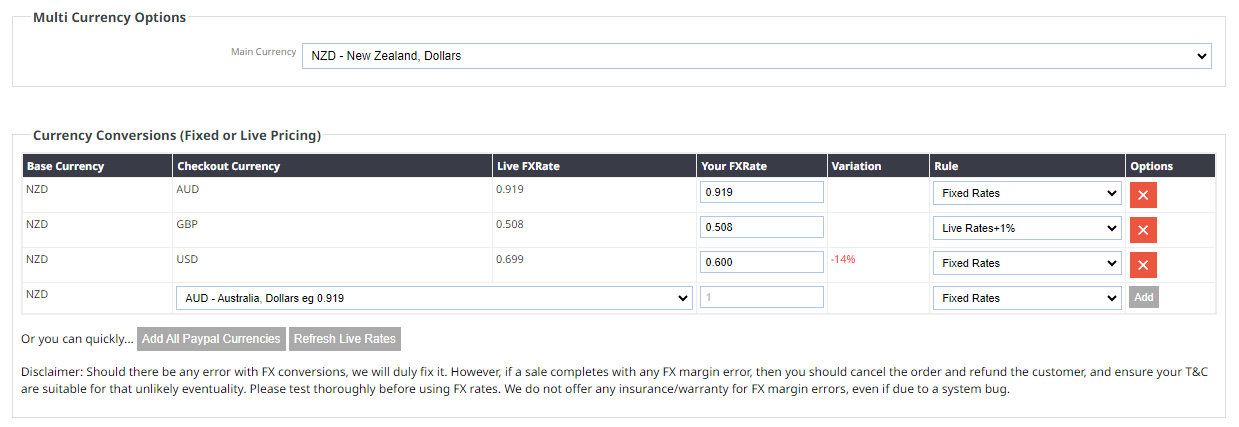
Example Multi Currency Screen with a combination of live and fixed rates set.
How to enable the Multi Currency plugin
- Click the ECOMMERCE button, then scroll down to the Add Plugins (Add Features) section
- This section will list all the available plugins.
- Find the Multi Currrency plugin and click the green + icon to bring up the plugin info page and pricing.
- Click the green Add Plugin button to enable.
How to disable the Multi Currency plugin
- Click the ECOMMERCE button, then scroll down to the My Plugins Enabled section
- This section will list all the enabled plugins.
- Find the Multi Currrency plugin and click the Configure Widget pātene
- Click the red Remove Plugin button to disable.
Multi Currency settings
Main Currency
Set the main currency for the shopping page
Currency Conversions
Set your fixed currencies and their rates, and manually set a fixed rate or use a live rate.
Add Paypal Currencies
Pressing this option will quickly add all the paypal related currencies to the conversion list
Refresh Live Rates
Manually update the rates to the current known value.
Multi Currency Selector Display
When enabled and with the additional currencies set - the Multi Currency Dropdown / Selector appears on the Product List page, Product Detail page and the Order Summary Page.
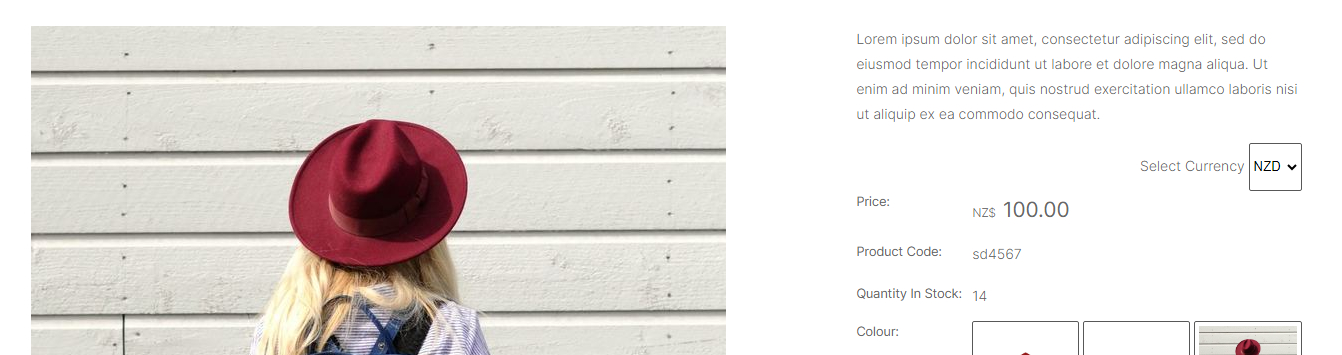
Product Detail page with currency selector
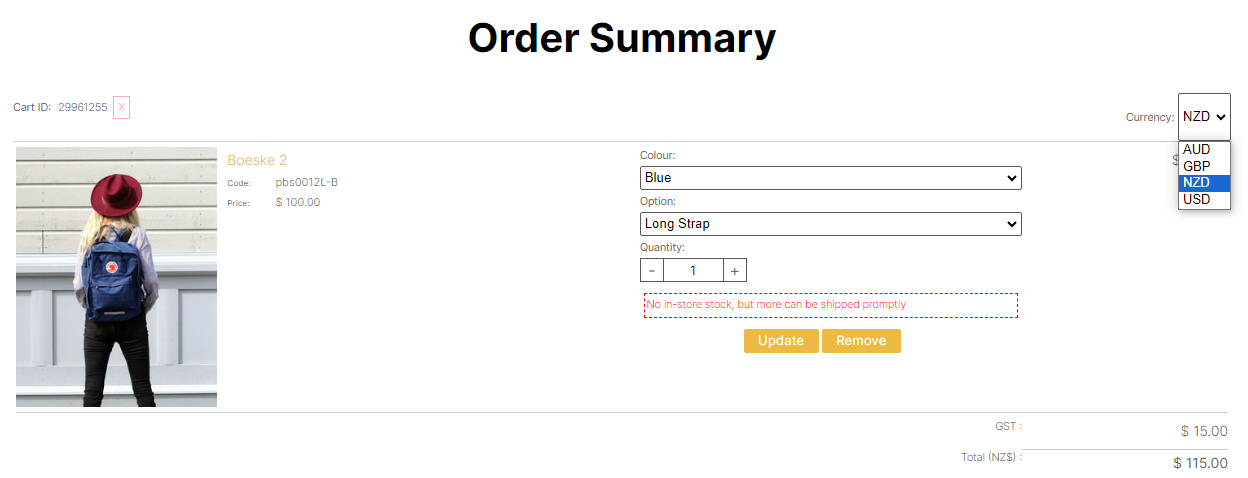
Order Summary page with currency selector
Question: Does the system automatically detect a visitor’s location and default to the correct currency, such as AUD for Australian customers?
Answer: Yes, the system automatically detects a visitor’s location based on their IP address and assigns the corresponding country and currency. It is approximately 90% accurate, but not perfect.
There are some limitations:
- Customers using international VPNs may appear to be browsing from a different country.
- In some cases, a user’s location cannot be identified. When this happens, the system defaults to NZ.
While the auto-detection works well in most cases, it is not guaranteed to be 100% accurate due to these factors.
More From This Section
FAQ Topics
Building your site
- Pages
- Content Editor Modes Explained
- - DRAG DROP Editor (Default)
- - CONTENTBOX Editor (Advanced)
- - WORD STYLE Editor (TinyMCE)
- - LIVE Editor (Click to Edit Mode)
- Styling Content
- Images / Backgrounds
- Banners and Sliders
- Uploading content
- Design Templates
- Forms
- More Q & A
- Menus
- Mobile Styling and Optimisation
Advanced Page Types
E-Commerce
- Shopping Basics
- Product Pricing, Currencies
- Category Management
- Ngā Hua
- Product Options
- Layout and Formatting
- Ngā Kōwhiringa Utu
- Freight - Couriers
- Processing Orders
- Orders / Invoices
- Advanced Ecommerce
- Plugins
- Wholesale
- Bookings Management System
- Stock & Quantities
- Vouchers, Discounts, Loyalty Points
- Selling Photos / Prints
- Shopping Cart Add-on Page types
- Advanced APIs / Add ons
- Te Wāhi Hoko (POS)
- Reports
Email & Membership
- Member Management
- Members Pages / Template Customisations
- From Addresses and Reply To Email Notifications
- Global Enquiry form options
- Standard Field Names
- Webmail
- Bulk Email
- CRM Features
- Email Campaigns
- Forums & Blogs
- Pop3/Imap Email Services
- Scams and Hoaxes
- Lead Magnets / Growing Your Customer Database
Promoting your site
Advanced
- Power User Options
- Form Spam Filtering
- Wordpress
- PHP Setup
- [TAGS]
- FONTS - Embedding Web Fonts
- jQuery snippets
- FONTS - Uploading local font files
- Search External Links / Import external content
- HTML / CSS Snippets
- Loading additional Material Symbols styles
- FAQ Help Map
- Advanced Template Customisation, CSS, etc
- Languages and Translations
- Importing Content from Another Platform
