
If your Products have a SKU/Product Code assigned to the Product or Product variation, you can generate a delivery docket with Barcodes via the Print/Email documents area.
- Navigate to the relevant order
- Bring up the order options by clicking the Order # related to the order
- Click the Print / Email Docs button from the options
- Choose an option from the BARCODED PICKING SLIP section.
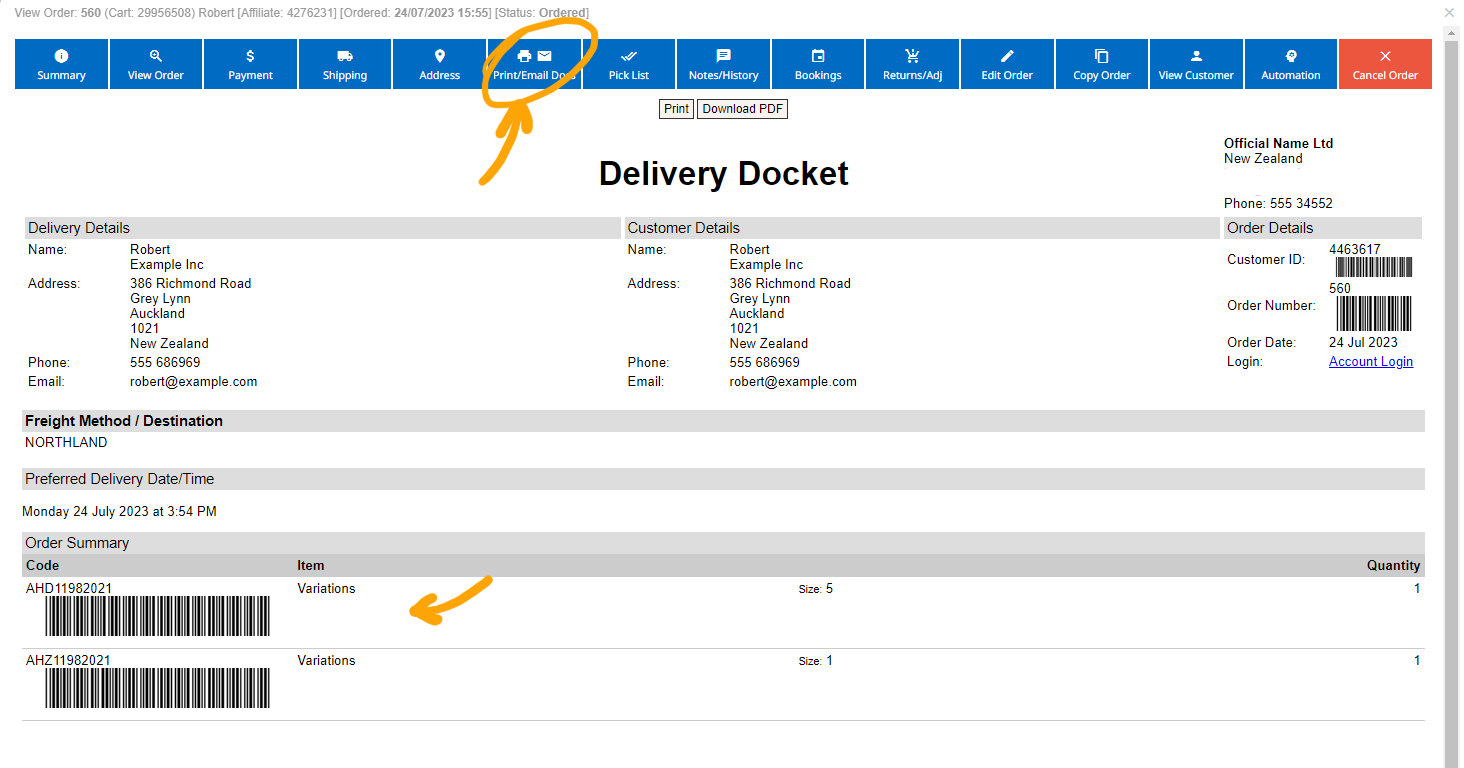
Example Delivery Document with barcodes generated
More From This Section
Clicking the Order number (or the blue magnifying glass in the buttons to the right) will provide additional options and detail for managing the order.
In the orders area you can view an interactive picklist for use on a tablet, or for printing out, when looking to get items for an order.
You can update an order received and paid, to return/update stock, add new products or add custom fees or credits. Changes will appear as adjustments to the original invoice.
If needed you can send/resend a customer their order dockets manually via the PRINT/EMAIL DOCS area. You can also choose to view, print or pdf the documents.
Customise the appearance of the notifications that are sent out to your customers.
Heres where to go to change it in the CMS
If you do not want customers to have the ability to auto-login to their website account from a link on the invoice, you can disable this.
You can choose to add a custom logo image to your invoice that overrides the website logo
You can specify your own custom order number, which will count sequentially from then on, as well as an invoice number prefix.
You can generate a delivery docket with scan-able barcodes via the Print/Email docs area
Via the Ecommerce notification options you can choose to have a barcode appear on order documents.
While the Status of the Order will change with certain events e.g. payment, you can set a custom Status to appear next to the order via the Notes / History area, when viewing the Order.
You can specify a different email address than the one set on your website contacts page to receive the order emails.
FAQ Topics
Building your site
- Pages
- Content Editor Modes Explained
- - DRAG DROP Editor (Default)
- - CONTENTBOX Editor (Advanced)
- - WORD STYLE Editor (TinyMCE)
- - LIVE Editor (Click to Edit Mode)
- Styling Content
- Images / Backgrounds
- Banners and Sliders
- Uploading content
- Design Templates
- Forms
- More Q & A
- Menus
- Mobile Styling and Optimisation
Advanced Page Types
E-Commerce
- Shopping Basics
- Product Pricing, Currencies
- Category Management
- Ngā Hua
- Product Options
- Layout and Formatting
- Ngā Kōwhiringa Utu
- Freight - Couriers
- Processing Orders
- Orders / Invoices
- Advanced Ecommerce
- Plugins
- Wholesale
- Bookings Management System
- Stock & Quantities
- Vouchers, Discounts, Loyalty Points
- Selling Photos / Prints
- Shopping Cart Add-on Page types
- Advanced APIs / Add ons
- Te Wāhi Hoko (POS)
- Reports
Email & Membership
- Member Management
- Members Pages / Template Customisations
- From Addresses and Reply To Email Notifications
- Global Enquiry form options
- Standard Field Names
- Webmail
- Bulk Email
- CRM Features
- Email Campaigns
- Forums & Blogs
- Pop3/Imap Email Services
- Scams and Hoaxes
- Lead Magnets / Growing Your Customer Database
Promoting your site
Advanced
- Power User Options
- Form Spam Filtering
- Wordpress
- PHP Setup
- [TAGS]
- FONTS - Embedding Web Fonts
- jQuery snippets
- FONTS - Uploading local font files
- Search External Links / Import external content
- HTML / CSS Snippets
- Loading additional Material Symbols styles
- FAQ Help Map
- Advanced Template Customisation, CSS, etc
- Languages and Translations
- Importing Content from Another Platform
