
This guide makes use of the Drag-drop and Contentbox editors. If you havent aready, you should check out the Drag-drop a Contentbox sections of the help-faq.
Adding Animation effects via the Effects Panel (Drag-drop/Contentbox)
You can quickly add animation effect and set animation timings using standard effects via the Effects Panel.
This panel provides a set of the most popular effects for the snippet used, and can apply multiple effects with one click.
Drag-drop Editor Effects via the Style Editor
Drag-drop editor effects can be found as a tab in the Style Editor - Available by clicking the RED COG ICON that appears top left above the editor when you click into a snippet to edit the content.
This option allows you more flexibility and fine-tuning that the Effects Panel e.g. you can target more elements and there are additional animation effects available. Each effect is applied to an individual element.
- Intro Animation, Hover and Box Shadow Effects can be applied to rows, columns, images or other elements directly effecting the element.
- Text Shadows can be applied to rows, columns, images or other elements, affecting the text elements found within the selected element.
- Column Formatting Effects can only be applied to a row element, and effect the immediate children of each column.


Intro Animation Effects
Intro Animation Effects are triggered by the content being visible in the browser viewport - they can be set to always play or play once.

Interactions and Hover Effects
Hover effects are applied to an element and can effect the self, images or captions depending on the effect set.
Shadows
Shadows can be applied to box elements such as rows, columns, captions etc, or applied to the text found within the elements (h1, h2, p etc)
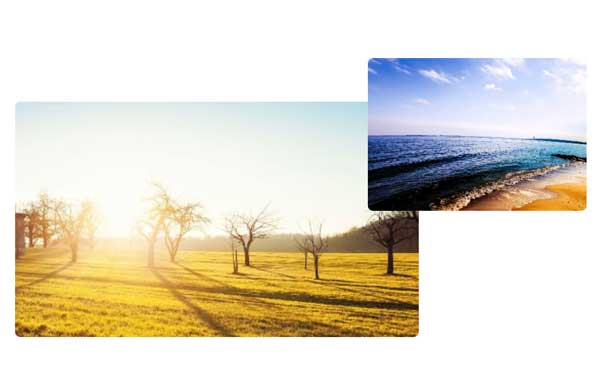
Column Formatting Effects
Column Formatting Effects change the positioning and style of the standard column layouts with the press of a button. Learn more and view examples at the link below:
How to add an Effect
Navigate to the Effects Tab in the Style Editor and select an effect from the relevant Section / dropdown.
How to remove an Effect
Navigate to the Effects Tab in the Style Editor and set the effect from the relevant Section / dropdown to a blank value.
Selecting an element to add an Effect
By default the Style Editor will show settings / target the ROW element, but you can choose another element by clicking the required element name at the top of the Style Editor popup window.
Contentbox Section Animations
Contentbox Sections can also be animated - with options available for the background images (Ken Burns, Parallax, Fixed), and the entire sections themselves.
The animation settings for the Contentbox Sections can be found by clicking the BLUE COG ICON, found at the top-left or bottom right of the active section you are editing.
Section Effects animate as the element scrolls into view, they can be set to only show once, or each time a visitor scrolls down the page.

Animate Background
This option will animate the background image assigned to the category in some way.
Example above shows a parallax image in the background moving at a different rate when scrolling up and down.
Animate Section
Section animations apply to the entire section block.
Example above shows a fade in and right animation effect
More From This Section
FAQ Topics
Building your site
- Pages
- Content Editor Modes Explained
- - DRAG DROP Editor (Default)
- - CONTENTBOX Editor (Advanced)
- - WORD STYLE Editor (TinyMCE)
- - LIVE Editor (Click to Edit Mode)
- Styling Content
- Images / Backgrounds
- Banners and Sliders
- Uploading content
- Design Templates
- Forms
- More Q & A
- Menus
- Mobile Styling and Optimisation
Advanced Page Types
E-Commerce
- Shopping Basics
- Product Pricing, Currencies
- Category Management
- Ngā Hua
- Product Options
- Layout and Formatting
- Ngā Kōwhiringa Utu
- Freight - Couriers
- Processing Orders
- Orders / Invoices
- Advanced Ecommerce
- Plugins
- Wholesale
- Bookings Management System
- Stock & Quantities
- Vouchers, Discounts, Loyalty Points
- Selling Photos / Prints
- Shopping Cart Add-on Page types
- Advanced APIs / Add ons
- Te Wāhi Hoko (POS)
- Reports
Email & Membership
- Member Management
- Members Pages / Template Customisations
- From Addresses and Reply To Email Notifications
- Global Enquiry form options
- Standard Field Names
- Webmail
- Bulk Email
- CRM Features
- Email Campaigns
- Forums & Blogs
- Pop3/Imap Email Services
- Scams and Hoaxes
- Lead Magnets / Growing Your Customer Database
Promoting your site
Advanced
- Power User Options
- Form Spam Filtering
- Wordpress
- PHP Setup
- [TAGS]
- FONTS - Embedding Web Fonts
- jQuery snippets
- FONTS - Uploading local font files
- Search External Links / Import external content
- HTML / CSS Snippets
- Loading additional Material Symbols styles
- FAQ Help Map
- Advanced Template Customisation, CSS, etc
- Languages and Translations
- Importing Content from Another Platform
