
Whenever products are displayed in a category, or blogs in a list, we use a smaller image file called a thumbnail. Google ranking considers that you have used a right sized image for display. Using right size images ensures that your website is fast, and that you don't waste alot of traffic as people download hundreds of photos they didn't even look at.
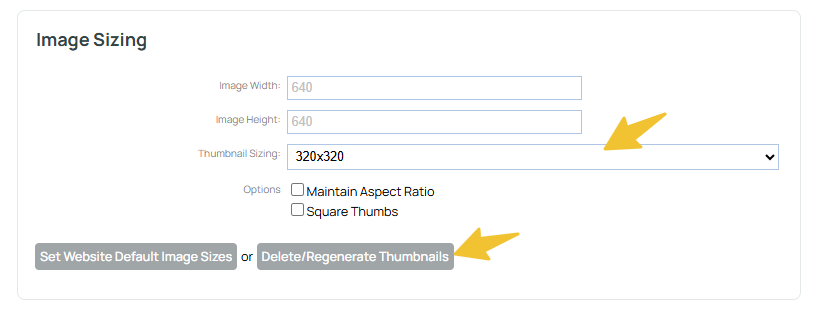
The default dimensions of the thumbnail file is 320x320, and this produces a smaller image with a reasonable quality and filesize for producting ultra small thumbnails, as well as larger thumbnails that look good on most websites.
Template content widths are usually in the vacinity of 900px to 1200px wide.
If you have a 3 column layout, then your images will consume about 960px width, plus you will have some margins/spacing between columns.
Usually category layouts show the whole thumbnail image, uncropped, and not bigger than the 320px width. It will show portrait photos as portrait, or landscape as landscape.
Some category layouts instead show all images sqaure cropped, and consuming the maximum amount of space in the column. It remains possible that such a layout may need to "upscale" the thumbnail to the space allowed. For example, a 320px image displays 390px wide.
If the layout you have chosen is producing blurry images, then you need to consider the thumbnail size.
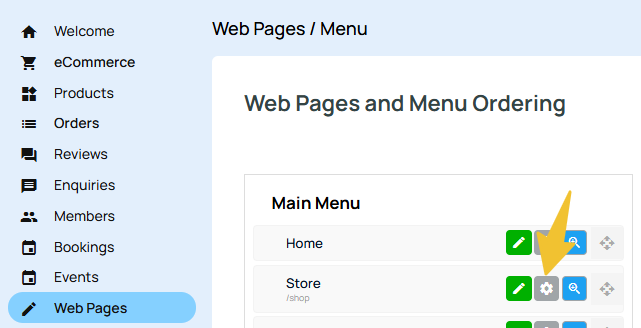
You can override the thumbnail dimensions in the page "options" tab, or by going to web pages on the left hand menu and selecting the settings cog next to the page.
Please don't go overboard in picking a very large thumbnail size. Even though this will produce a better looking image, it will slow down page load speed, it will reduce your page ranking, and it will eat up all of your hosting plan traffic allowance.
Consider that a change from 320x320 to 640x640 is actually a quadrupal change. Meaning page load speed is 4x slower, and uses 4x more data.
More From This Section
FAQ Topics
Building your site
- Pages
- Content Editor Modes Explained
- - DRAG DROP Editor (Default)
- - CONTENTBOX Editor (Advanced)
- - WORD STYLE Editor (TinyMCE)
- - LIVE Editor (Click to Edit Mode)
- Styling Content
- Images / Backgrounds
- Banners and Sliders
- Uploading content
- Design Templates
- Forms
- More Q & A
- Menus
- Mobile Styling and Optimisation
Advanced Page Types
E-Commerce
- Shopping Basics
- Product Pricing, Currencies
- Category Management
- Ngā Hua
- Product Options
- Layout and Formatting
- Ngā Kōwhiringa Utu
- Freight - Couriers
- Processing Orders
- Orders / Invoices
- Advanced Ecommerce
- Plugins
- Wholesale
- Bookings Management System
- Stock & Quantities
- Vouchers, Discounts, Loyalty Points
- Selling Photos / Prints
- Shopping Cart Add-on Page types
- Advanced APIs / Add ons
- Te Wāhi Hoko (POS)
- Reports
Email & Membership
- Member Management
- Members Pages / Template Customisations
- From Addresses and Reply To Email Notifications
- Global Enquiry form options
- Standard Field Names
- Webmail
- Bulk Email
- CRM Features
- Email Campaigns
- Forums & Blogs
- Pop3/Imap Email Services
- Scams and Hoaxes
- Lead Magnets / Growing Your Customer Database
Promoting your site
Advanced
- Power User Options
- Form Spam Filtering
- Wordpress
- PHP Setup
- [TAGS]
- FONTS - Embedding Web Fonts
- jQuery snippets
- FONTS - Uploading local font files
- Search External Links / Import external content
- HTML / CSS Snippets
- Loading additional Material Symbols styles
- FAQ Help Map
- Advanced Template Customisation, CSS, etc
- Languages and Translations
- Importing Content from Another Platform
