
You can add the widgets to your website via the DESIGN > Add Social Widgets option.
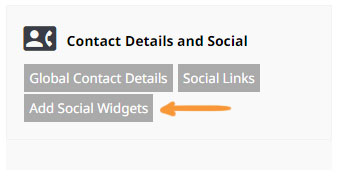
There are various places throughout the template you can add the widgets, by selecting the required dropdown option.
Widgets available
There are Shopping related widgets, Social / Add-this widgets, Search boxes and Breadcrumbs available. - See bottom of page for examples.
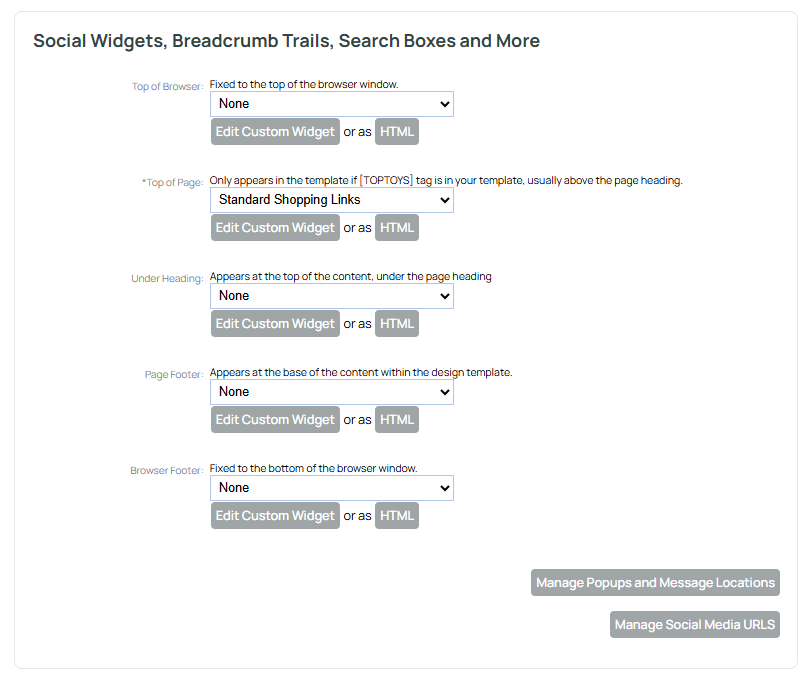
How to enable a widget
Click the dropdown for the area you wish to set a widget and choose the required widget from the dropdown list.
How to disable a widget
You can disable widget by changing the required dropdown to NONE.
Adding social media links as widgets
To add your social website links to your website, make sure your usernames or social media page URL are entered in your global contact details under the Design tab.
Enabling social icons in the widgets area will then list the social icons you have added to your contact details.
Breadcrumbs
Breadcrumbs are great options to assist your customers quickly navigate around your website and for SEO.
They can be added to any widget location, but the conventional location is under the heading.
There is the option to add a breadcrumb only, or breadcrumb and search box.
Advanced Options - Customising the breadcrumb format
When choosing to show breadcrumbs you can tweak the separator text and prefix for breadcrumbs.
Reserved word "none" will give you nothing, whereas, an empty box, will give the default >
You are not limited to a single character when defining your separator
.Example of customised breadcrumb format below:

Search Widgets
Widget Examples
Examples of each widget below - these may look different depending on your template or settings.

Kāta hoko
Only shows if items are in customers cart. This is usually already part of the template.

Standard Shopping links
Wishlist only appears if plugin enabled.

Search + Shopping Icons.
Wishlist only appears if plugin enabled.

Breadcrumb + Search Box
Whole Site Search

Breadcrumb Only

Search Box Only
Whole Site Search

Search Box Shopping Basic
Basic Shop Search

Name Phone + Search
Whole Site Search

Very Social Bar (Inc +1 Like X-Post) *

Social Icons
Left, centred or right aligned (unless in toptoys section) Length will depend on how many socials you have.

Social Icons + Search
Length will depend on how many socials you have. Whole Site Search.

Social Icons + Shop Search
Length will depend on how many socials you have. Shop Search.

Phone + Email

Phone + Email Right Aligned

Name + Phone

Phone Email Left + Search Right

Phone Large + Social Icons
Length will depend on how many socials you have.
Takiuru
Left or right aligned options (unless in toptoys section)

Back to Top

+1 Like X-Post Pinterest *

Facebook Website Page Like *
Users can share to their own Meta Page
Edit Custom Widget or as HTML
You can add your own widget code to an area. Edit Custom Widget will open TINYMCE editors for rich formatting or you can use the HTML button to paste in code.
Tuhipoka:
"Top of page" is unavailable in some templates. This option is only available in templates containing the [TOPTOYS] tag.
A bread crumb trail is a list of links that indicate how you might have got to the page you are in. It normally shows the quickest path from the home page. For example, a product page might have breadcrumb trail from home, to category, to sub category, to product.
A search box is hopefully self-explanatory, but it will only find content that has not been "hidden"
Social Media Icons and Social Media Links are links to the social networks you participate in, these can be added on your contact details page.
If your toy is left aligned or right aligned, you can usually use the custom widget button to insert another widget to the alternate side.
Some items are marked as legacy, or prefixed with an asterix. These widgets are for backward compatibility. However, using these widgets may cause your website to not be mobile responsive, or to share traffic data with third party social networks, and/or slow down your page load speed. Most users know how to share a page, and the historical use of widgets to prompt sharing is not encouraged as it once was.
More From This Section
FAQ Topics
Building your site
- Pages
- Content Editor Modes Explained
- - DRAG DROP Editor (Default)
- - CONTENTBOX Editor (Advanced)
- - WORD STYLE Editor (TinyMCE)
- - LIVE Editor (Click to Edit Mode)
- Styling Content
- Images / Backgrounds
- Banners and Sliders
- Uploading content
- Design Templates
- Forms
- More Q & A
- Menus
- Mobile Styling and Optimisation
Advanced Page Types
E-Commerce
- Shopping Basics
- Product Pricing, Currencies
- Category Management
- Ngā Hua
- Product Options
- Layout and Formatting
- Ngā Kōwhiringa Utu
- Freight - Couriers
- Processing Orders
- Orders / Invoices
- Advanced Ecommerce
- Plugins
- Wholesale
- Bookings Management System
- Stock & Quantities
- Vouchers, Discounts, Loyalty Points
- Selling Photos / Prints
- Shopping Cart Add-on Page types
- Advanced APIs / Add ons
- Te Wāhi Hoko (POS)
- Reports
Email & Membership
- Member Management
- Members Pages / Template Customisations
- From Addresses and Reply To Email Notifications
- Global Enquiry form options
- Standard Field Names
- Webmail
- Bulk Email
- CRM Features
- Email Campaigns
- Forums & Blogs
- Pop3/Imap Email Services
- Scams and Hoaxes
- Lead Magnets / Growing Your Customer Database
Promoting your site
Advanced
- Power User Options
- Form Spam Filtering
- Wordpress
- PHP Setup
- [TAGS]
- FONTS - Embedding Web Fonts
- jQuery snippets
- FONTS - Uploading local font files
- Search External Links / Import external content
- HTML / CSS Snippets
- Loading additional Material Symbols styles
- FAQ Help Map
- Advanced Template Customisation, CSS, etc
- Languages and Translations
- Importing Content from Another Platform
