
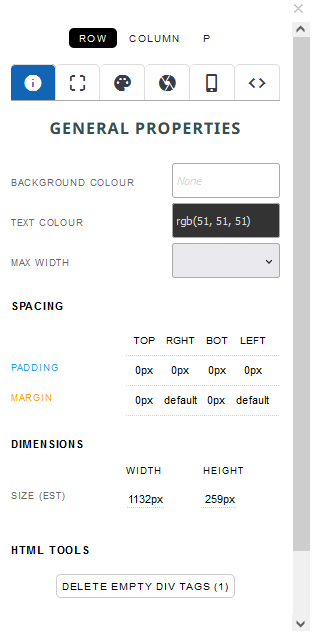
Style Editor
Allows the styling of individual elements within a snippet block.
How to Open
Click the RED COG Icon found in the row of icons at the top of the active snippet block.
Keyboard Shortcut
Click into the page and press CTRL + ALT + Y
Link Properties
(Style Editor Tab)
Allows the linking of text and images to different web pages.
How to Open
Highlight some text and click the CHAIN ICON in the text toolbar at the top of the editor.
Click the EDIT LINK shown when hovering over linked text.
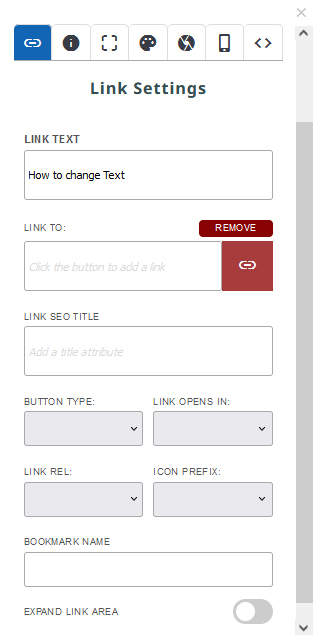
Image Properties(Style Editor Tab)
Allows the styling of individual elements within a snippet block.
How to Open
Click the RED COG Icon found in the row of icons at the top of the active snippet block.
Keyboard Shortcut
Click into the page and press CTRL + ALT + Y
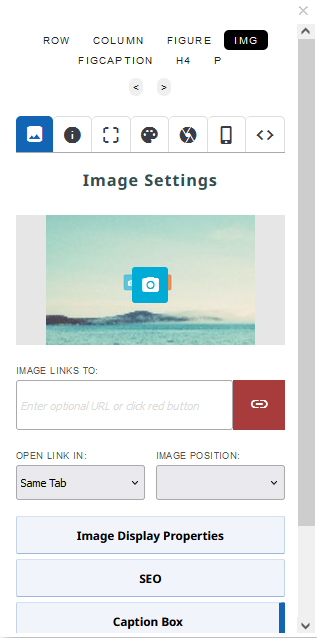
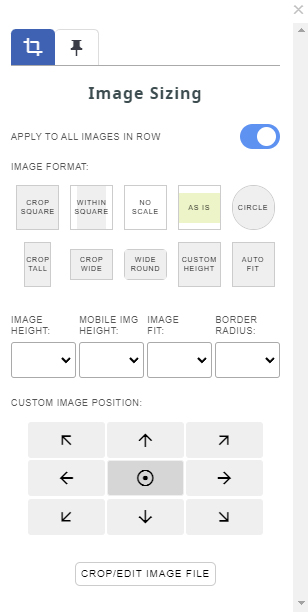
Image Sizing
Allows the positioning of an image inside a viewable area, with preset size or custom options.
How to Open
Click the ORANGE CROP Icon that appears when hovering over an image
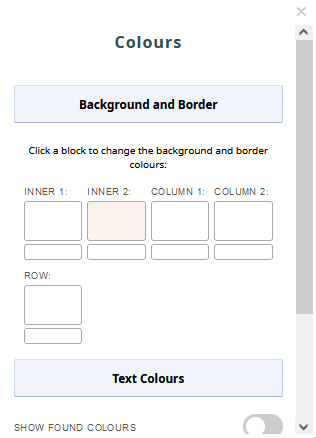
Colours Editor
Allows the application of background colour to rows, columns and inner containers within a snippet block, along with text colours.
How to Open
Click the PALETTE Icon found in the vertical row of icons found on the right side of the editor.
Click into the page and press CTRL + ALT + N (or CMD + CTRL + N on Mac)
Animation Block Effects Panel
Applies animations to snippet elements
How to Open
Highlight some text and click the CHAIN ICON in the text toolbar at the top of the editor.
Click into the page and press CTRL + ALT + P
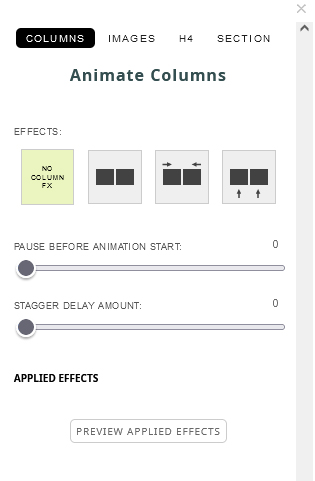

Image Wizard
Allows the uploading of a new image, replacing an image from the media library and cropping / sizing options.
How to Open
Click the BLUE CAMERA Icon that appears when hovering over an image.

Properties Panel
Sits at the bottom of the editor providing information on the current active element. You can also change certain values in the panel.
How to Open / Keyboard Shortcut
Click into the page and press CTRL + ALT + P
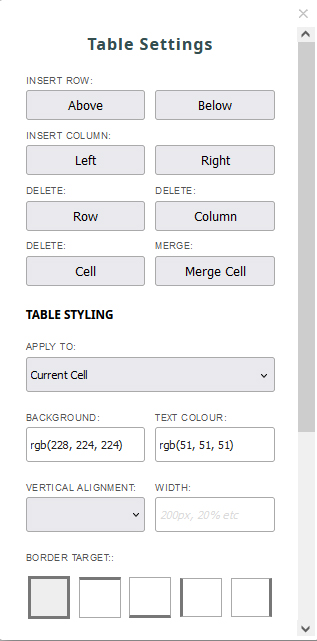
Table Editor
Used for formatting table elements
How to Open
Click the YELLOW COG Icon found in the top right when clicking into the snippet block.
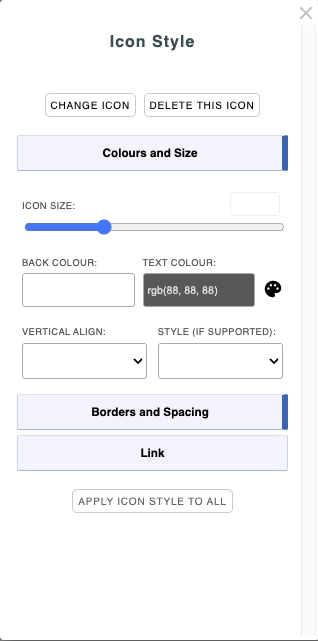
Icon Editor
Used for styling / changing / resizing icons
How to Open
Hover over the relevant icon and click the blue settings cog that appears.
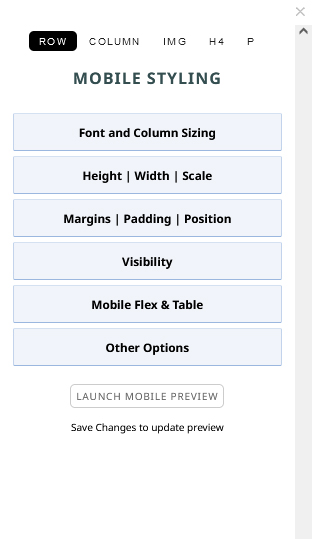
Mobile Editor
Applies mobile-only styling to page content.
How to Open
Change the Editor Size dropdown to MOBILE.
Click the MOBILE icon that appears top-right in contentbox mode.
Press CTRL + ALT + M once clicked into the page.
Click the MOBILE icon found to the right on the Properties popup window.
FAQ Topics
Building your site
- Pages
- Content Editor Modes Explained
- - DRAG DROP Editor (Default)
- - CONTENTBOX Editor (Advanced)
- - WORD STYLE Editor (TinyMCE)
- - LIVE Editor (Click to Edit Mode)
- Styling Content
- Images / Backgrounds
- Banners and Sliders
- Uploading content
- Design Templates
- Forms
- More Q & A
- Menus
- Mobile Styling and Optimisation
Advanced Page Types
E-Commerce
- Shopping Basics
- Product Pricing, Currencies
- Category Management
- Ngā Hua
- Product Options
- Layout and Formatting
- Ngā Kōwhiringa Utu
- Freight - Couriers
- Processing Orders
- Orders / Invoices
- Advanced Ecommerce
- Plugins
- Wholesale
- Bookings Management System
- Stock & Quantities
- Vouchers, Discounts, Loyalty Points
- Selling Photos / Prints
- Shopping Cart Add-on Page types
- Advanced APIs / Add ons
- Te Wāhi Hoko (POS)
- Reports
Email & Membership
- Member Management
- Members Pages / Template Customisations
- From Addresses and Reply To Email Notifications
- Global Enquiry form options
- Standard Field Names
- Webmail
- Bulk Email
- CRM Features
- Email Campaigns
- Forums & Blogs
- Pop3/Imap Email Services
- Scams and Hoaxes
- Lead Magnets / Growing Your Customer Database
Promoting your site
Advanced
- Power User Options
- Form Spam Filtering
- Wordpress
- PHP Setup
- [TAGS]
- FONTS - Embedding Web Fonts
- jQuery snippets
- FONTS - Uploading local font files
- Search External Links / Import external content
- HTML / CSS Snippets
- Loading additional Material Symbols styles
- FAQ Help Map
- Advanced Template Customisation, CSS, etc
- Languages and Translations
- Importing Content from Another Platform
