
The drag-drop editor is one of the three main content editors available in the system, it allows you to create complex grid-based layouts using images, text and other media and reformats content automatically for viewing on mobile.
The editor uses rows of snippet 'blocks' - blocks of pre-formatted content that are used to build your page.
About Snippet Blocks
Snippet blocks are blocks of preformatted content that you can add, copy and move around the page. The blocks are made up of a Row element with Columns of content within it. There can be up to 8 columns within a row. Snippet blocks are not fixed in size, you can alter the appearance of a snippet block once it has been added to the page.
You can change a snippets column width and add remove new columns.
Columns can be set to different widths and you can add additional columns or take them away with the column tools that show when you hover over a column.
You can duplicate a snippet block to reuse an existing format
If you have formatted a snippet block with certain font sizes, colours or styling you can duplicate the existing block if you want to reuse it.
You can reorder your snippet blocks vertically.
If you want to change the order the snippets appear in vertically you can drag-drop reorder their sequence when editing a page.

A selection of snippet blocks, including image sliders, enquiry forms, images and text, images with captions
How to build your page layout
1. Build your page layout using snippet blocks
2 Replace the default content with your own text and images
Once the content laid out on the page, change out the text and images with your own content.
Editing Content
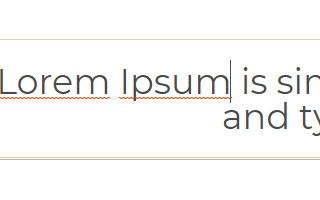
How to change Text

How to change an Image

Reorder, Delete, Duplicate
Use the icons at the top of the snippet to Move, View Code, Launch the Style Editor, Duplicate or Delete.
Setting Headings and Paragraph Text
You can add Heading snippets, Heading 1, Heading 2, Heading 3 as new snippets or restyle existing paragraph text by highlighing the text with your mouse, and the choosing the H icon from the toolbar.

Changing an Image
Hover over any image in the page to bring up the image options icons.
- Blue Camera Icon - Browse / Replace with a new image
- Red Chain Icon - Link an image / Image Properties / SEO / Caption Settings
- Orange Crop Icon - Resize image.
Toolbars

The Top Toolbar
The top toolbar appears when you click into any text area and allows you to style / reformat text, plus some other options.

Snippet Block - Row Toolbar
The row toolbar allows you to move, edit the snippet block as a whole.

Snippet Block - Column Toolbar
The column toolbar allows you to reorder, resize or copy the current column.

Add Snippet Block Button
Launches a popup window which allows you to choose a new snippet block to add in the current location.
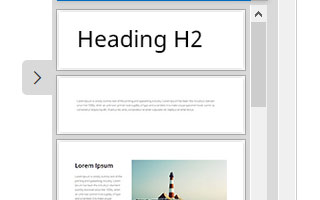
Add Snippet Block Sidebar
Allows you to drag-drop in a snippet block from the sidebar in your current content.
The Top Toolbar - Text formatting and linking

Clicking into text will highlight the top toolbar. Highlight some text with your mouse and then choose an option to change the text.
- B Icon - Bold Text
- I Icon - Italic Text
- U Icon - Underline Text
- Aa Icon - Font Size and Spacing
- S Line Icon - Strikethrough Text
- Circle Icon - Text Colour
- Eraser Icon - Remove styling
- H Icon - Change heading
- A Icon - Change font
- Four Lines - Text Alignment
- Dot plus line - List Format
- Chain Icon - add Link
- Broken Chain Icon - remove link
- Table Icon - Add Table
- Image Icon - Add Image
- Icon Icon - Add Icon
- Code Icon - View HTML
The Row Toolbar

The row toolbar allows you to move, edit the snippet block as a whole.
Green 4-way Arrow Icon - Move Snippet Block Vertically, or align horizontally if no max-width.
Blue Code Icon - View HTML
Red Cog Icon - Launch Style Editor Popup.
Grey Plus Icon - Duplicate Snippet
Orange X Icon - Delete Snippet
(the Blue Palette Icon which Launched the Colour Popup is now available via the right-hand side of the editor)
Which one is the Red Cog Icon?
If you are told to by a help guide to click the Red Cog Icon, this can be found in the row icons that appear above a snippet when a snippet block is clicked. It has an icon that looks like a cog.
The Snippet Column Toolbar

With the Snippet Column tools you can move and change the size and number of snippet columns.
Green 4-way Arrow Icon - Drag-drop move column left/right, or to another snippet
Grey Plus Icon - Duplicate snippet column
Orange X Icon - Delete snippet column
Light Blue Line - Click-drag to resize snippet column
Adding New Content
How to add new Snippet Blocks - Drag-drop via the Add Snippet Block button.
Clicking into any existing snippet block will bring up the green + Add Snippet Block button. Clicking this button will bring up a popup window with a range of preset snippets available to add. Click the required snippet to add to the page and edit.

Click

Choose

Edit
How to add new Snippet Blocks - Drag-drop via the sidebar
You can scroll down the list of default snippets using the scrollbar to the right hand side of the sidebar.
Click the > tab to hide snippet sidebar.
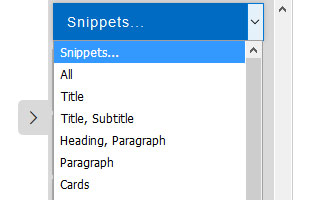
More snippets are available by clicking the Snippets.. dropdown at the top of the sidebar. Clicking the dropdown will show a list of categories, which will give you more layout options in each category.
Adding new content via the Text Modal Icons
You can also click into any content area inside the snippet to use a series of icons that appear on the selected element.
The Plus (+) Icon - Add a content element underneath the highlighted element.
The Chevron (^) Icon - move the current element up in the order.
The Delete (X) Icon - delete the current highlighted element.

Distraction-free mode
You can enable a distraction-free mode that hides the column and section icons temporarily, this is actioned via the EYE ICON found in the Properties Modal.
The distraction-free mode can make it easier to edit small column content, allow you to edit link text that is below the button, or focus on editing text removing the ability to accidentally click buttons.

FAQ Topics
Building your site
- Pages
- Content Editor Modes Explained
- - DRAG DROP Editor (Default)
- - CONTENTBOX Editor (Advanced)
- - WORD STYLE Editor (TinyMCE)
- - LIVE Editor (Click to Edit Mode)
- Styling Content
- Images / Backgrounds
- Banners and Sliders
- Uploading content
- Design Templates
- Forms
- More Q & A
- Menus
- Mobile Styling and Optimisation
Advanced Page Types
E-Commerce
- Shopping Basics
- Product Pricing, Currencies
- Category Management
- Ngā Hua
- Product Options
- Layout and Formatting
- Ngā Kōwhiringa Utu
- Freight - Couriers
- Processing Orders
- Orders / Invoices
- Advanced Ecommerce
- Plugins
- Wholesale
- Bookings Management System
- Stock & Quantities
- Vouchers, Discounts, Loyalty Points
- Selling Photos / Prints
- Shopping Cart Add-on Page types
- Advanced APIs / Add ons
- Te Wāhi Hoko (POS)
- Reports
Email & Membership
- Member Management
- Members Pages / Template Customisations
- From Addresses and Reply To Email Notifications
- Global Enquiry form options
- Standard Field Names
- Webmail
- Bulk Email
- CRM Features
- Email Campaigns
- Forums & Blogs
- Pop3/Imap Email Services
- Scams and Hoaxes
- Lead Magnets / Growing Your Customer Database
Promoting your site
Advanced
- Power User Options
- Form Spam Filtering
- Wordpress
- PHP Setup
- [TAGS]
- FONTS - Embedding Web Fonts
- jQuery snippets
- FONTS - Uploading local font files
- Search External Links / Import external content
- HTML / CSS Snippets
- Loading additional Material Symbols styles
- FAQ Help Map
- Advanced Template Customisation, CSS, etc
- Languages and Translations
- Importing Content from Another Platform
