
You can convert any standard snippet block to run as a Marquee Slider that slides aross your webpage.
How to enable the Marquee Slider option
- Click the RED COG ICON at the top of the snippet block to open the Style Editor popup.
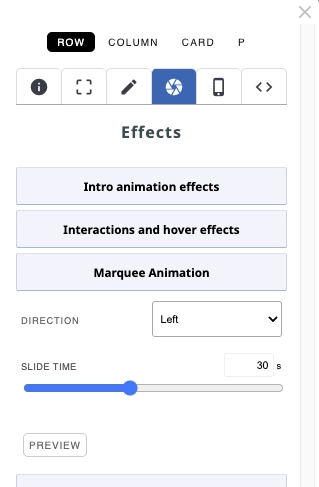
- Ensure the ROW button is highlighted (it will be by default)
- Once the popup opens, click the EFFECTS tab (camera lens icon)
- Open the settings Marquee Animation
- Apply the required settings
- (Optional) click the PREVIEW button to see the animation in action.
How to enable the Marquee Slider to go fullwidth of the browser window (via Contentbox)
- Add the required snippet to a Contentbox Section
- Enable the Marquee Slider option
- Click the BLUE COG ICON at the top of the Contentbox Section to open the Contentbox Settings popup.
- Set the CONTENT WIDTH dropdown to MAX WIDTH.
More From This Section
There are various places to add slideshow content
An overview of the sliders available for the Drag-drop editor.
You can turn any products promoted on the homepage into a featured products slider using a snippet block.
You can add a slider to any Drag-drop or Contentbox page that will show combined posts from your blogs and news pages.
Any photo gallery pages you have created can now be added to your website as a slideshow using a Drag and Drop editor snippet.
You can add a slideshow of testimonials created on another Drag-drop page to your homepage or other pages using the drag-drop and Contentbox editors.
An overview of settings found in Slider Settings modals
You can display your categories or products on your homepage, or any other page using the Product or Category Slider. This allows you to showcase items dynamically.
If you use the special Reviews Category type you can place a slider with your reviews on any Drag-drop or Contentbox page.
You can convert any standard snippet block to run as a Marquee Slider that slides across your webpage.
FAQ Topics
Building your site
- Pages
- Content Editor Modes Explained
- - DRAG DROP Editor (Default)
- - CONTENTBOX Editor (Advanced)
- - WORD STYLE Editor (TinyMCE)
- - LIVE Editor (Click to Edit Mode)
- Styling Content
- Images / Backgrounds
- Banners and Sliders
- Uploading content
- Design Templates
- Forms
- More Q & A
- Menus
- Mobile Styling and Optimisation
Advanced Page Types
E-Commerce
- Shopping Basics
- Product Pricing, Currencies
- Category Management
- Libri
- Product Options
- Layout and Formatting
- Opzioni di pagamento
- Freight - Couriers
- Processing Orders
- Orders / Invoices
- Advanced Ecommerce
- Plugins
- Wholesale
- Bookings Management System
- Stock & Quantities
- Vouchers, Discounts, Loyalty Points
- Selling Photos / Prints
- Shopping Cart Add-on Page types
- Advanced APIs / Add ons
- Punto vendita (POS)
- Reports
Email & Membership
- Member Management
- Members Pages / Template Customisations
- From Addresses and Reply To Email Notifications
- Global Enquiry form options
- Standard Field Names
- Webmail
- Bulk Email
- CRM Features
- Email Campaigns
- Forums & Blogs
- Pop3/Imap Email Services
- Scams and Hoaxes
- Lead Magnets / Growing Your Customer Database
Promoting your site
Advanced
- Power User Options
- Form Spam Filtering
- Wordpress
- PHP Setup
- [TAGS]
- FONTS - Embedding Web Fonts
- jQuery snippets
- FONTS - Uploading local font files
- Search External Links / Import external content
- HTML / CSS Snippets
- Loading additional Material Symbols styles
- FAQ Help Map
- Advanced Template Customisation, CSS, etc
- Languages and Translations
- Importing Content from Another Platform
